

This post explains how to combine VLC recordings using the command line or with MiniTool MovieMaker, a free video editor app. The software offers a smoother, more intuitive experience and lets you merge, edit, and polish your videos with ease.
VLC is a well-known, powerful, and free media player. Beyond simple playback, the software offers additional capabilities, such as screen recording and video conversion. It can capture the desktop screen, record live playback, and stream from a webcam. Best of all, it’s a 100% free screen recorder with no time limits and watermarks. Therefore, I often record videos using the software.
Sometimes, I need to combine several recordings into one for sharing or file management. VLC can help. When I need some editing features, I choose MiniTool MovieMaker. So, in this post, I’ll share how to combine VLC recordings using the two tools.
How to Combine VLC Recordings
Fast Track Steps:
- Place your VLC recordings in the same folder.
- Check the location of the VLC media player on your PC.
- Go to the video folder and open the command prompt.
- Enter the following merge command and press Enter.
Method 1: Use VLC Media Player
Yes, VLC can merge videos, but it is not a simple drag-and-drop process. Unlike traditional video mergers, which allow users to import and combine videos with a few clicks, VLC requires using the command line, and all the videos you want to merge must have identical formats, codecs, resolutions, and frame rates.
Since I use the same settings for every VLC screen recording and always record on the same machine, I can easily merge multiple VLC recordings via the command line.
1. Prepare VLC recordings
First, I need to place all videos I want to merge in a single folder (such as the computer’s default Videos folder) and rename them with simple names (e.g., 0724.mp4, 0725.mp4).
2. Find VLC’s location
Then, I should confirm the path to the VLC executable on my PC. On the desktop, right-click the VLC shortcut, select Open file location, and copy the path (e.g., D:\VLC\vlc.exe)
3. Open the command prompt
Navigate to the folder where the VLC recordings are saved, type “cmd” in the address bar, and press Enter.
4. Execute the merge command
In the command prompt, enter the following merge command:
“VLC” file1.mp4 file2.mp4 –sout “#gather:std{access=file, mux=ts, dst=final.mp4}” –sout-keep
- Replace VLC with the actual path to VLC.
- Replace file1.mp4 and file2.mp4 with your actual video names
- Replace final.mp4 with your desired output filename.
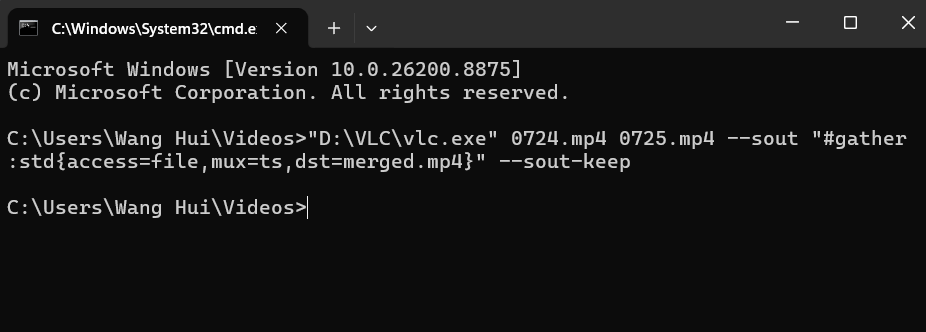
For instance, when I need to combine two VLC recordings, I enter:
“D:\VLC\vlc.exe” 0724.mp4 0725.mp4 –sout “#gather:std{access=file,mux=ts,dst=merged.mp4}” –sout-keep
Next, press Enter, and I will return to my folder where I save VLC recordings. I will then find a video named merged.
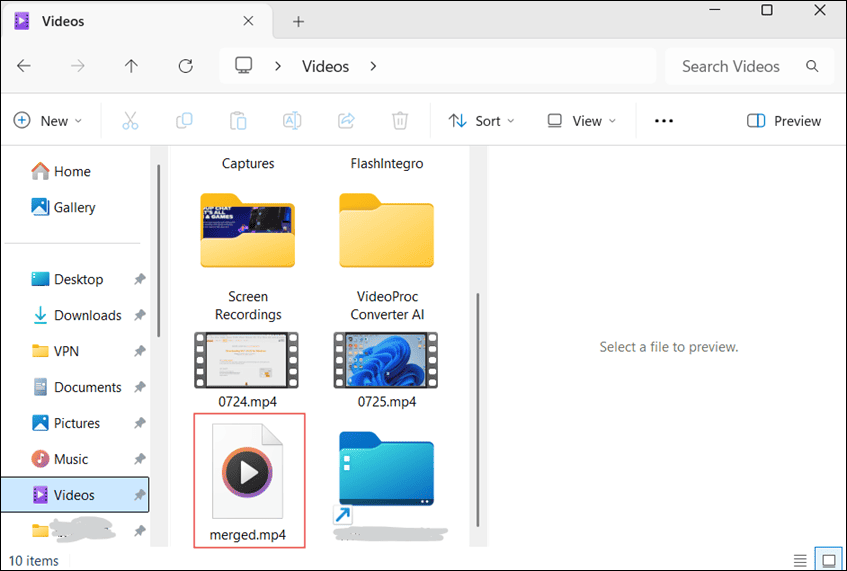
It’s easy to merge VLC screen recordings via the command line, but I can’t cut or edit the video in any way. When I need to remove unwanted parts of a video or add text to highlight key points, I will choose MiniTool MovieMaker.
Method 2: Use MiniTool MovieMaker
Fast Track Steps:
- Download and install the video editor and merger.
- Import VLC recordings and orange them on the timeline.
- Edit videos by trimming, inserting text, adding shapes, etc.
- Export the final video to the computer.
MiniTool MovieMaker is a video editor without watermark, designed for beginners to help them create and edit videos in minutes. The software can trim, crop, split, rotate, and merge videos, change playback speed, add text, and more. Here is how to combine VLC recordings within the software.
1. Install the video editor
Click the button below to download and install the video merger on your PC.
MiniTool MovieMakerClick to Download100%Clean & Safe
2. Import VLC recordings
Open the application and click New Project in the pop-up window to start a new project and enter the main interface. On the left side, click Import Media Files to open the File Explorer to add the target VLC recordings. Then, drag and drop these clips to the timeline.
3. Orange these clips
To reorder these VLC recordings, just drag and drop them to the desired spot on the timeline.
4. Edit the VLC recordings
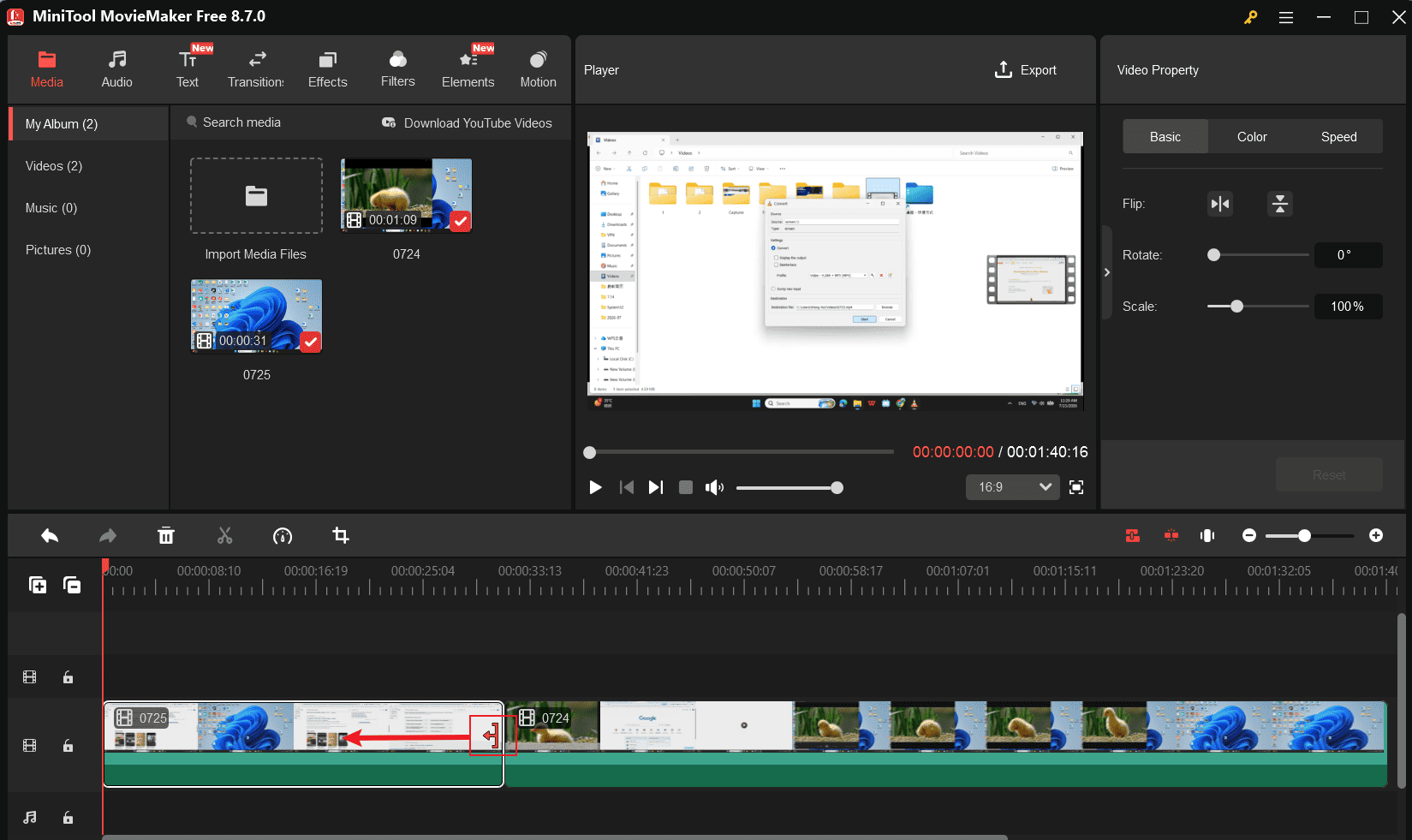
Trim: Select a video clip on the timeline and hover over either end until the Trim icon appears. Then, drag the icon inward to trim away any unwanted footage from the start or end of the clip.
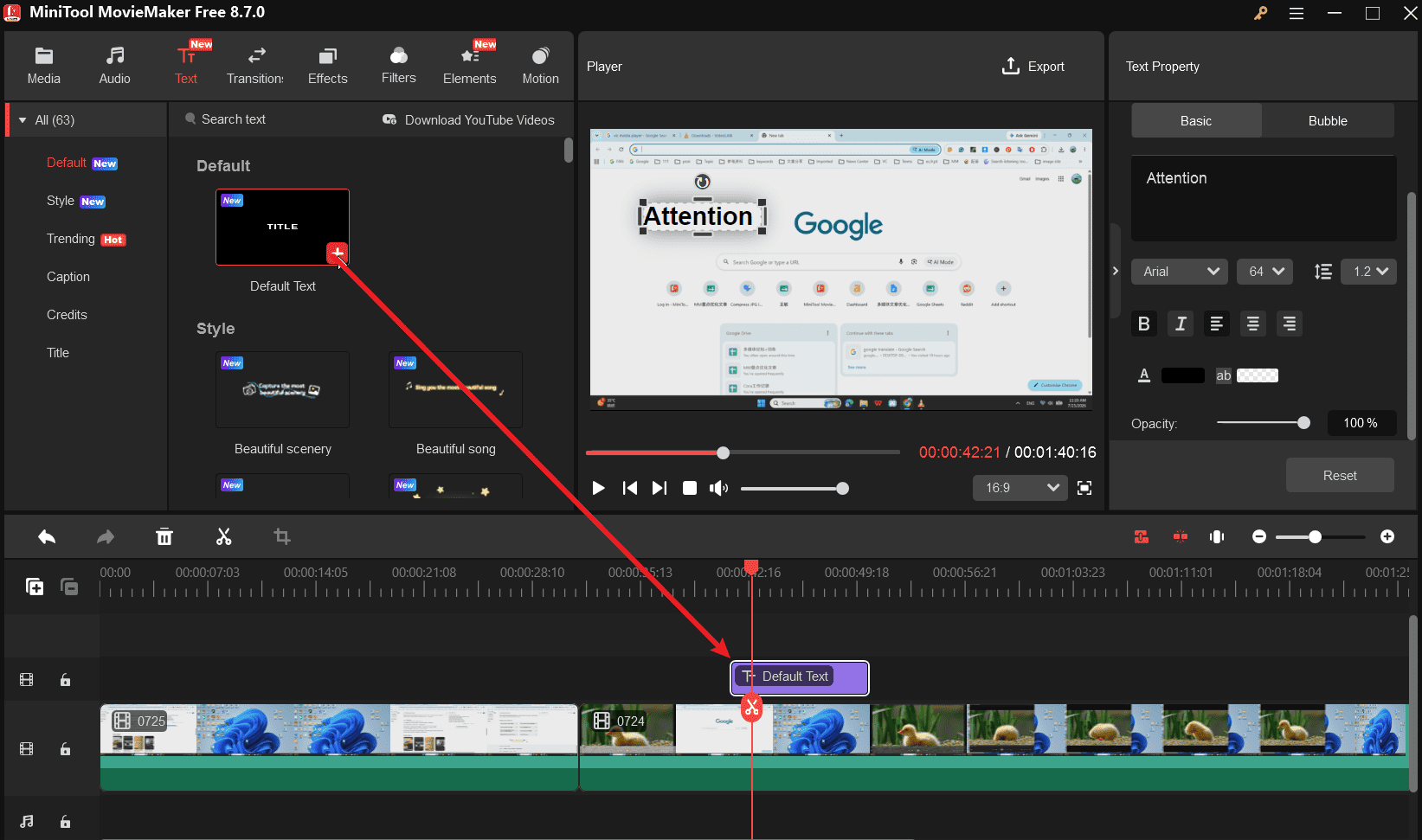
Add text: Click Text at the top toolbar and click Default > Default Text to add the template to the timeline. Alternatively, select Caption and choose a style to add animated text. Next, go to the Text Editor to enter and edit text.
Add shapes: Click Elements at the top, select Arrow or Shape on the left sidebar, download the desired sticker, and click the + icon on it to add it to the timeline. Next, rotate, flip, or scale the element, adjust its position on the frame, and set its duration by dragging either edge of the track on the timeline.
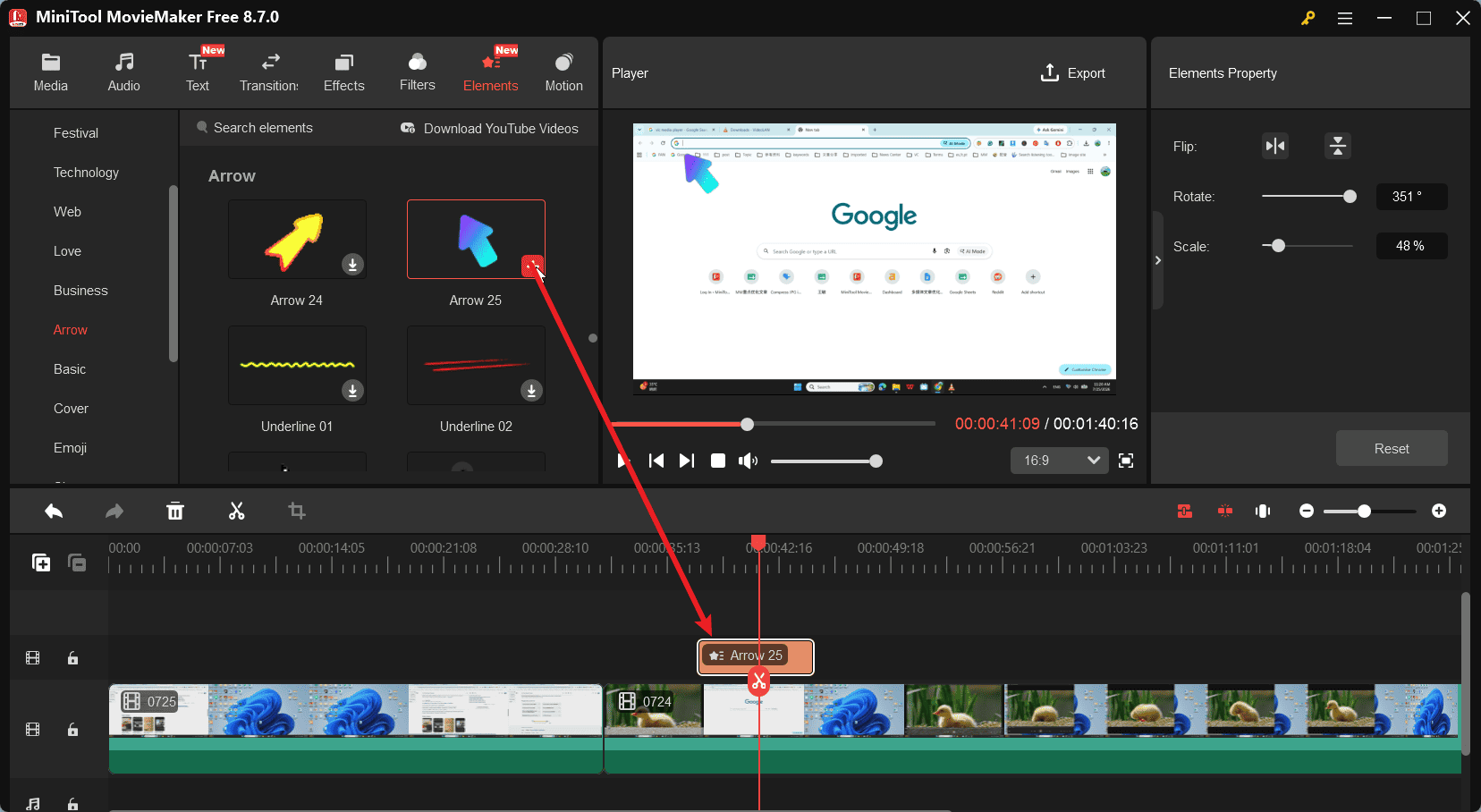
5. Combine VLC recordings and export the result
Click Export in the upper-right corner. On the Export window, select the output format, resolution, frame rate, and save path. Finally, click Export again to start merging the VLC recordings and save the result to the PC.
Conclusion
How to combine VLC recordings? This isn’t a difficult problem at all. With the appropriate VLC installation path and file names, combining multiple VLC recordings via command lines only needs a few clicks.
If you need to make some edits, a third-party video editor like MiniTool MovieMaker is a solid choice. Finally, if you encounter problems while using the software, send an email to [email protected] for help.
People Also Ask
2. Sign in with your Microsoft account and click Create a new video to enter the interface.
3. Click Import media to upload the target two video files.
4. Drag and drop them to the timeline.
5. Make some edits if necessary.
6. Click Export to merge the two videos into a single MP4 file.
2. Click Import Media Files to add your audio files.
3. Add them to the timeline and adjust their order.
4. Click Export, set the output format to MP3, and click Export.
2. Import your videos and photos.
3. Add them to the timeline or storyboard.
4. Adjust the clip’s order.
5. Apply transitions between clips and add music.
6. Export the final video.
About The Author

Position: Columnist
Cora is a tech writer specializing in digital media workflows, with over six years of hands-on experience in video post-production, media transcoding, and screen capture. Her writing is always clear and practical. Cora also produces in-depth software reviews for users across skill levels to help them find the right tool and enjoy video editing.
User Comments :