

If you want to play audio or video, this post is worth reading. It tells you what is Winamp, how to get the Winamp download, and how to set up Winamp. For more information, read this post now!
What Is Winamp
Winamp is a free media player developed by Nullsoft. It plays both live and recorded streamed video and audio content. It supports a lot of audio and video formats. For instance, it can play audio with MP3, OGG, AAC, WAV, MOD, XM, S3M, IT, MIDI, or other formats. As for the video, it supports AVI, ASF, MPEG, and NSV formats.
Its semi-automated feature enables to you have a more personal listening experience. Its Media Display is another useful function. With the Get Album Art tool, you can obtain the cover art of your favorite songs. From Winamp, you can find preloaded URLs to stream and download MP3 files.
Importantly, Winamp is friendly to new beginners. For instance, it will guide starters to sync multimedia files to its Media Library database. As for Winamp Lite Remote, it is the star element. You can regard it as a prelude to casting equipment like Chromecast or Amazon Fire TV.
Winamp enables remote replication on the web, PlayStations 3, Xbox 360, Wii, or a mobile phone of any media file through the Internet. It can work on systems including Windows XP/Vista/7/8/10/11. It supports iPods, USBs, PlaysForSure from Microsoft, and ActiveSync.
![[2 Ways] How to Set Windows 11 Default Media Player?](https://images.minitool.com/moviemaker.minitool.com/images/uploads/2022/09/windows-11-default-media-player-thumbnail.png)
Main Features of Winamp
As a fast, flexible, and high-fidelity music player, Winamp includes various features. They are summarized as follows.
- Advanced media library
- Internet radio and TV support
- Integrated Internet music videos & songs
- Full support for classic and modern skins
- 10-band graphics equalizer with user-definable presets
- Windows Media Technology 4.0 input/output support
- Industry-standard Fraunhofer MP3 decoder
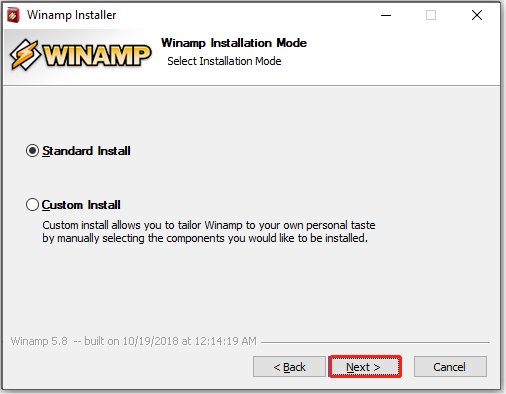
- With two installation modes (Standard Install and Custom Install)
- Available in 16 languages like Chinese, English, Turkish, Romanian, Brazilian, Portuguese, French, Italian, Polish, German Spanish, etc.
- iTunes Library Import
- CD ripping
- CD burning
To get the Winamp download, please move on.
Winamp Free Download and Install
Using the steps below to get the Winamp download and set up it.
Step 1: Download Winamp.
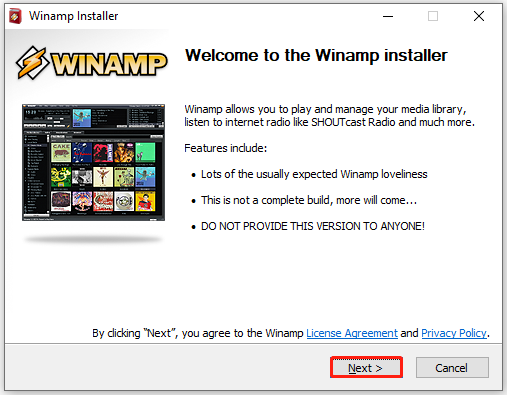
Step 2: Double-click on the downloaded setup file to run it. Then it prompts a Winamp Installer window as shown below. At this time, click Next to continue.
Step 3: Choose a Winamp installation mode and then click Next. You can either choose Standard Install or Custom Install.
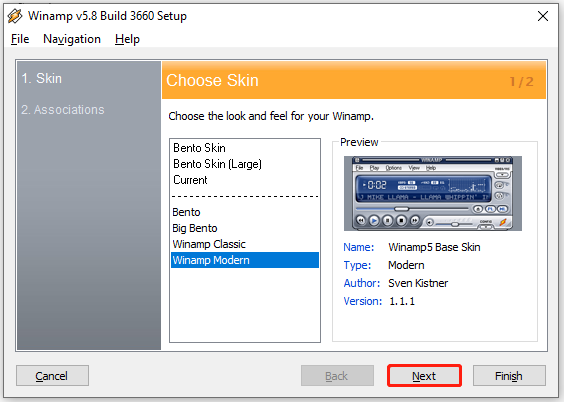
Step 4: In the next window, choose a skin for the Winamp based on your needs and click Next. Here, I choose Winamp Modern.
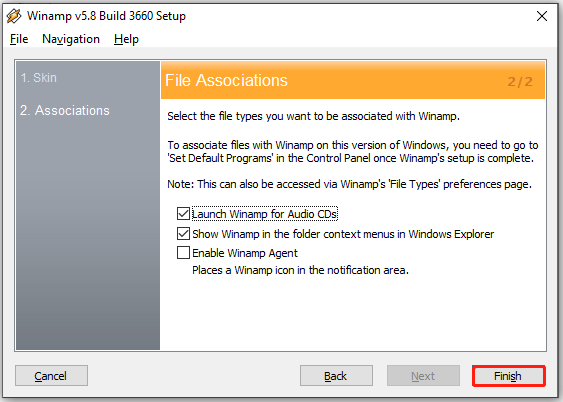
Step 5: Choose file associations based on your demands and click Finish.
Step 6: Then Winamp will launch automatically on your computer.
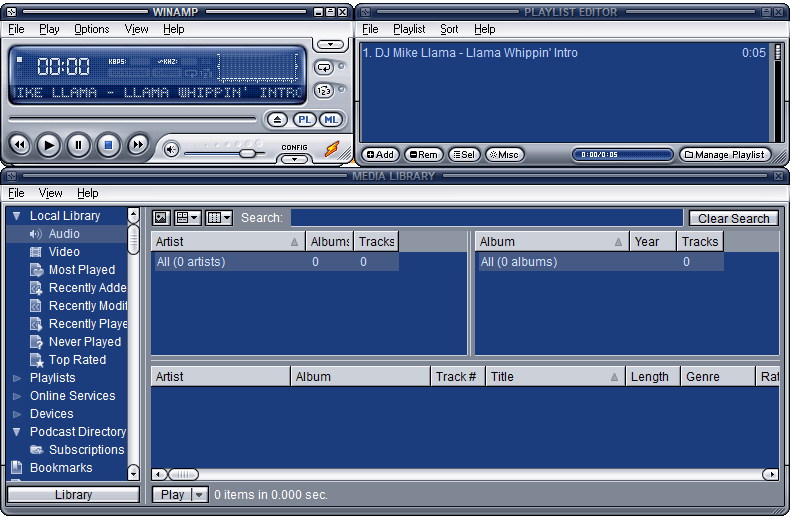
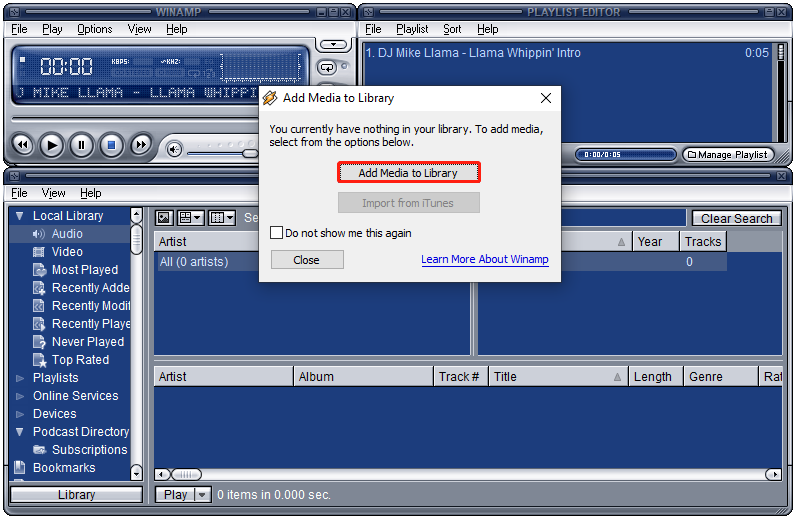
Step 7: You can add audio or video content to Winamp by expanding Local Library > clicking on Audio or Video twice > clicking Add Media to Library > choosing the content and clicking Add.
Well, you can get the Winamp download and learn the setup process by following the above steps. After installing Winamp, you can play audio or video on it.
User Comments :