

Discord blurry issue is heatedly discussed. You can see it in many communities and technical forums. Here is a true example.
Hey guys, hoping someone can help. My discord keeps blurring everything apart from the 2 bottom messages and text entry box. It started doing this a few weeks ago when Discord updated, not entirely sure how to fix it. Disabling hardware acceleration maybe?
None of my other programs are affected, and any program I have on that monitor are absolutely fine with no issues so I know it’s not the monitor. I’m on the latest Nvidia driver too.-linustechtips.com
If you are also bothered by the Discord blurry issue, solve it with the following methods.
Solution 1: Disable Hardware Acceleration
According to user reports, Discord blurry text will disappear after disabling hardware acceleration. Here’s how to do that.
Step 1: Run Discord from your laptop to open it. You will see your name on the bottom left corner of the Discord.
Step 2: Hover over the gear icon located on the right side of your name and then the User Settings option will appear. Click on User Settings.
Step 3: Click on Appearance in the left pane of the User Settings page.
Step 4: Scroll down the Appearance page to the bottom. Then you can see the Hardware Acceleration option under the Advanced section.
Step 5: Click on the toggle to move it to the off position. If you are prompted with a confirmation window, just allow it. Then the hardware acceleration will be disabled. Now, you can run Discord to see if Discord text blurry issue occurs.
Solution 2: Turn off Anti-Aliasing
If you use Windows 10 and an NVIDIA graphics card, Discord blurry text or video can be caused by anti-aliasing on your graphics card. In this case, you need to turn off anti-aliasing. Here are steps for doing that.
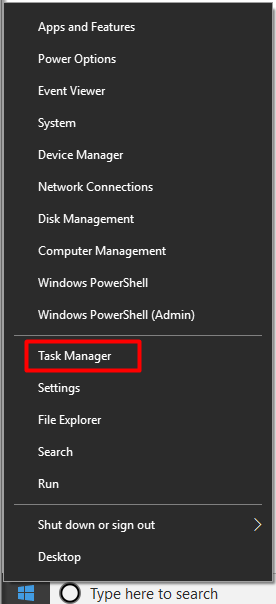
Step 1: Right-click on the Windows icon on the desktop and then click on Task Manager option. You can also press Ctrl + Alt + Del and click Task Manager to open it.
Step 2: If you see only a few programs running in the Task Manager window, click More details at the bottom left corner of the window.
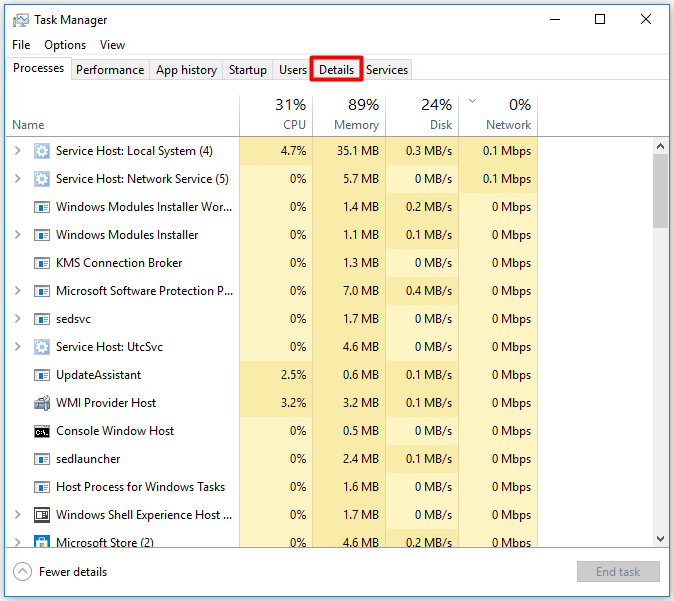
Step 3: Navigate to the Details tab by clicking Details at the top menu.
Step 4: Scroll down the content to find Discord under the Name column.
Step 5: You may find multiple instances of Discord written as discord.exe. Find the instance that uses the most RAM by checking the number in the Memory column. After finding it, right-click on it and click Open file location.
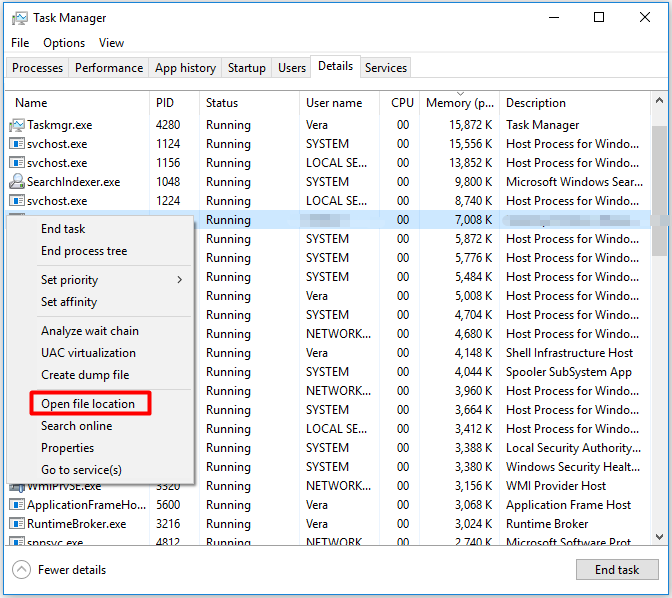
Step 6: Then a window with the file location of Discord on your PC pops up. You need to remember that.
Step 7: Now, open Control Panel by directly searching it in the search box.
Step 8: In the Control Panel window, type nvidia at the upper right corner. Click on NVIDIA Control Panel to continue.
Step 9: After loading, find 3D Settings in the left pane and then click Manage 3D Settings.
Step 10: Here are two options for you. One is Global Settings, while the other is Program Settings. You need to pick Program Settings.
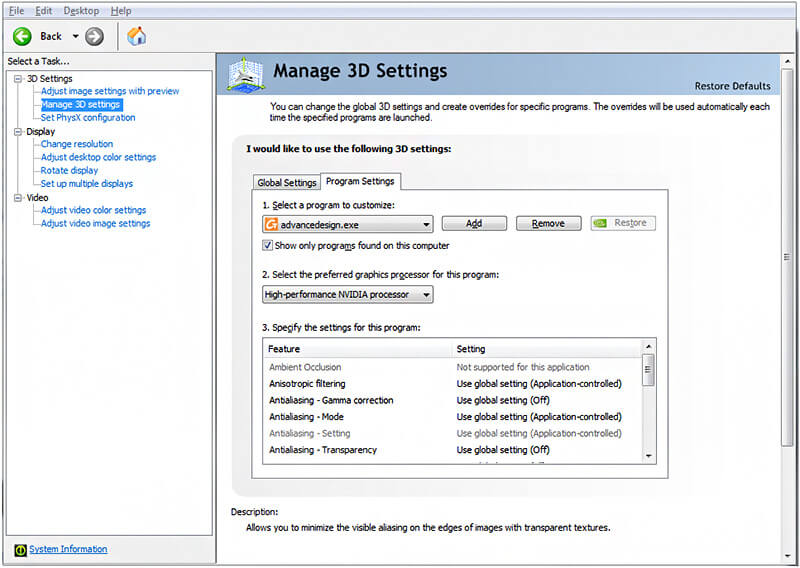
Step 11: In the Program Settings, click the Add button next to the drop-down menu. Click Browse on the lower right corner of the prompted window.
Step 12: Now, open the window you saved in Step 6 and then copy and paste the address into the top bar of Add. After that, hit Enter.
Step 13: When discord.exe comes up, click on it and hit the Open button.
Step 14: Then you will back to the NVIDIA Control Panel. Click Select a program to customize.
Step 15: Choose Specify the settings for the program. Find Anti-aliasing FXAA under the Feature column.
Step 16: Click the drop-down box inside the Anti-aliasing FXAA and choose Off. Finally, click Apply to execute the operation.
Solution 3: Reinstall Discord
If Discord text blurry issue still occurs after executing the above methods, try reinstalling Discord. For that, follow these steps.
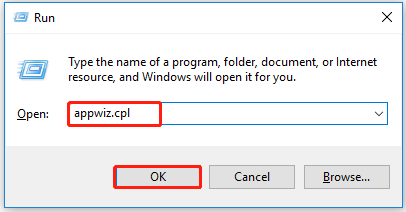
Step 1: Press Windows and R keys to open the Run window, and then type appwiz.cpl and click OK to open the Programs and Features window.
Step 2: In the next window, find and right-click Discord from listed programs and click Uninstall.
Step 3: Click Yes in the pop-up confirmation window. After uninstalling, move to the official website of Discord to download it.
Step 4: After the download finishes, install it by following the on-screen instruction.
User Comments :