

Cloning yourself in a picture is a common creative photography method that allows the same person to appear in several locations inside a single image, giving the impression that multiple selves are interacting at once. This illusion can be used to create ridiculous and humorous scenes, bringing immense joy to the audience.
With the help of various editing applications, creating such images has become within reach. The following content offers two easy and robust methods to clone oneself in a picture. Read on for more!
How to Clone Yourself in a Picture
Here are two easy and reliable methods to clone yourself in a picture.
Method 1. Use Adobe Photoshop
Adobe Photoshop is a powerful and top-grade image design and editing program that supports a wide range of editing functions. It allows you to color correct images, edit photos, composite images, and more. It’s usually used to create logos, artwork, illustrations, and more, popular among many professionals. But for beginners, the learning curve is quite steep. Also, Photoshop needs subscriptions. If your budget allows, this software is still worth trying.
Now, you can follow the instructions below to clone yourself in a picture using Adobe Photoshop.
1. Download and Install Photoshop
Go to Adobe Photoshop’s official website to subscribe to this program and install it on your computer.
2. Import the Target Photo
Launch Photoshop to enter its main interface, and then click the Open… button to add your picture. Next, choose the File option at the top left and click the Place Embedded option to insert another photo.
3. Clone the Picture
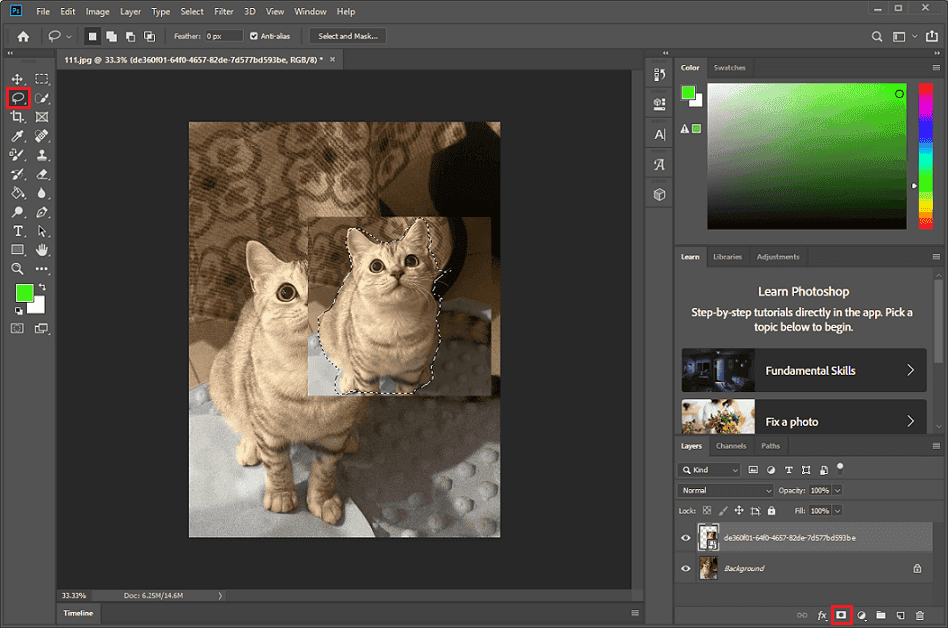
Select the Lasso tool in the left toolbar, then hold and select the target character. After that, click the Add layer mask option at the bottom right.
4. Adjust the Cloned Character’s Position
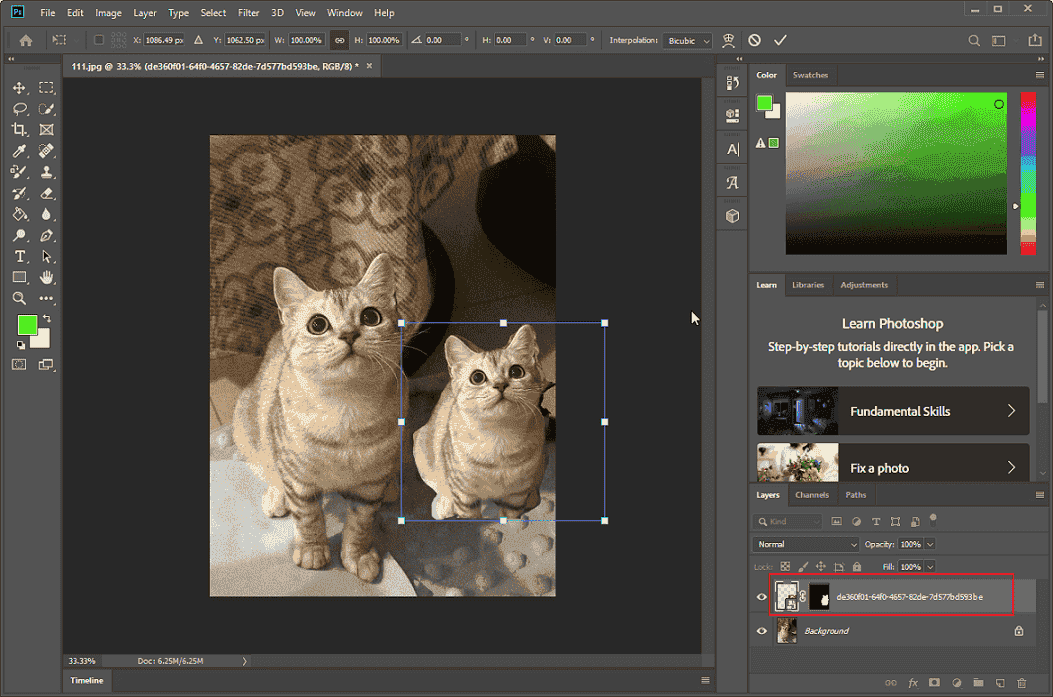
Choose the cloned layer in the Layers section, press Ctrl + T, and adjust the object’s position in the picture.
5. Save the Picture
Click the File option at the top left and choose the Save As… option.
That’s it! With Adobe Photoshop, you can clone a character in a picture easily.
Method 2. Use FlexClip
FlexClip is a browser-based and user-friendly tool that can also help you clone yourself in a picture. Except for that, this online tool also offers other functions, like editing videos, text-to-video, generating pictures with AI-powered tools, and more. Even if you’re a beginner, you can use FlexClip without any effort. Moreover, FlexClip supports various output resolutions and aspect ratios, making your videos suitable for different platforms.
Here’s a step-by-step guide on how to clone yourself in a picture with FlexClip.
1. Access FlexClip’s Editing Page
Visit https://www.flexclip.com/editor/app
2. Upload Your Picture
Head to the Media section and click Upload Files to add your photos. Drag one added photo to the timeline. Then, click the Add as Layer button on the rest of the photos to add them as a layer.
3. Remove the Image Background
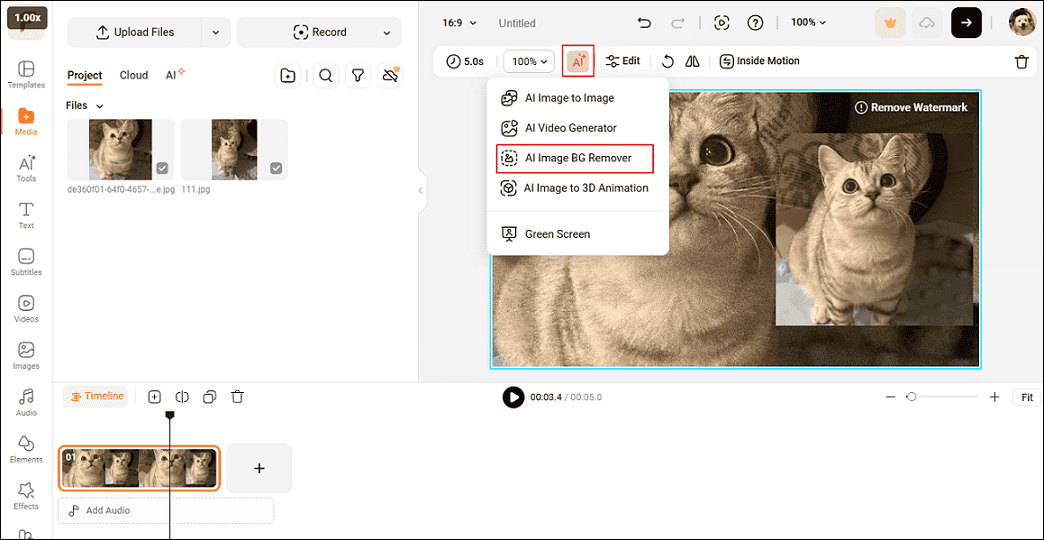
Choose one image layer on the timeline. Then, click the AI option above the preview photo and choose AI Image BG Remover to remove its background. Click Apply if you’re satisfied with the result.
4. Clone the Object
Add the picture for which you just removed the background as a layer in the main image. Adjust the image layer based on your needs.
5. Export the Image
Right-click the picture on the timeline and choose the Export Frame option. Then the picture will be downloaded.
All done!
MiniTool MovieMakerClick to Download100%Clean & Safe
In Summary
This post provides two reliable and quick methods to clone yourself in a picture. Feel free to choose the one you prefer. Hope this article can do you a big favor.
User Comments :