

When I was scrolling through Snapchat on my mobile phone, I came across a fun AR lens that can add a beard filter to videos. It allows me to see how I would look with a beard and adds an engaging touch to my content. This made me wonder whether there are similar beard filter tools available on Windows to apply the same effect to photos. After some research, I found three easy and powerful image editors, including YouCam Online Editor, Fotor, and VEED.
How to Add Beard Filter to Photo
In this section, I will show how to add a beard filter to a photo using three simple methods.
Method 1: Use YouCam Online Editor
YouCam Online Editor is a versatile editing platform that supports both basic editing and AI-powered features. I can crop, resize, and add effects to photos manually. With the help of AI tools, I can also enhance images, extend backgrounds, or perform color correction quickly and easily.
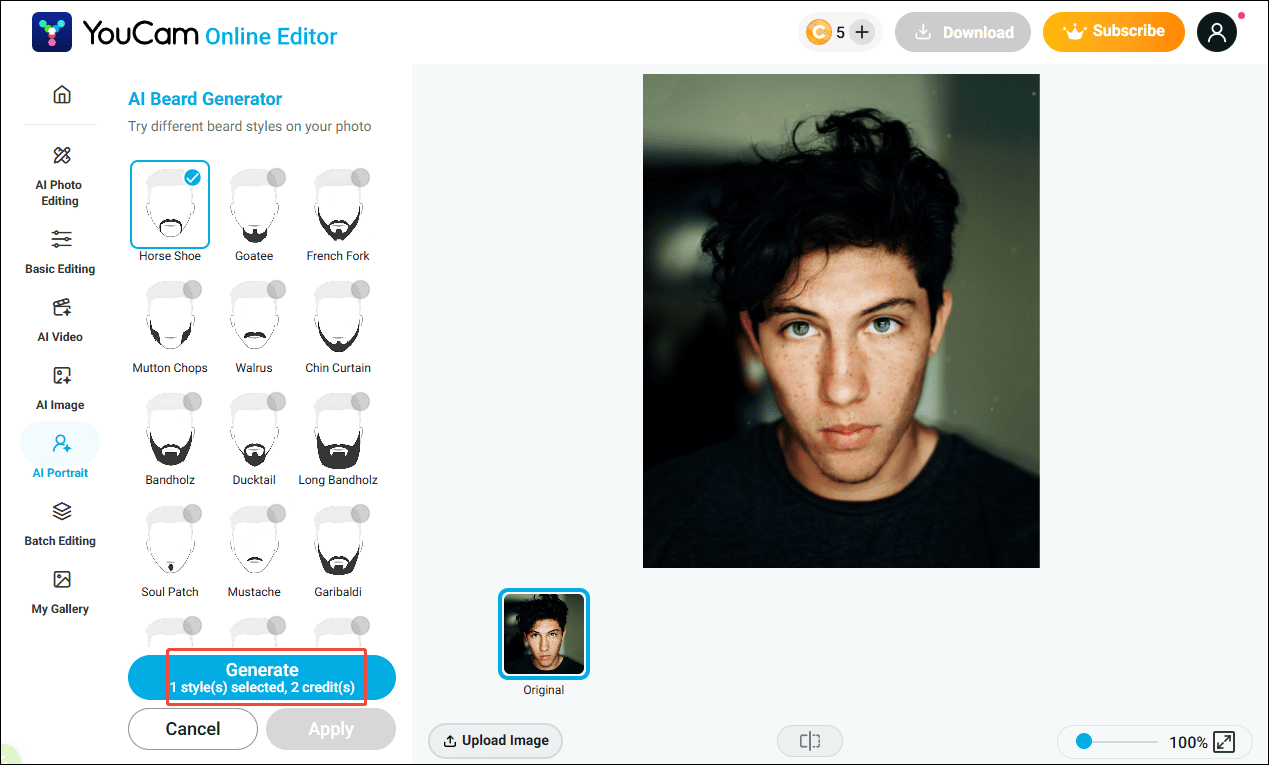
YouCam Online Editor offers a wide range of beard styles, including popular options like horseshoe, goatee, and bandholz. I can try different looks and instantly see the result, which is perfect for both fun edits and quick previews. Follow the steps below to add a beard filter to a photo using YouCam Online Editor.
Step 1: Upload a Photo
Visit the beard filter tool on the YouCam Online Editor website (https://yce.perfectcorp.com/products/beard-filter/result-photo). Click Upload Image to import the image from the computer.
Step 2: Choose the Beard Filter
Browse different beard styles and select the one I like. Then, click Generate to apply the beard filter.
Step 3: Download the Image
After a few seconds, the edited image will appear. Click the Download icon to save it to the computer.
Method 2: Use Fotor
Fotor is another powerful editing platform that strikes a good balance between basic editing and AI-powered features. In addition to photo editing, it also performs well in design creation. With a variety of ready-made templates available, I can easily create business cards, YouTube thumbnails, and more.
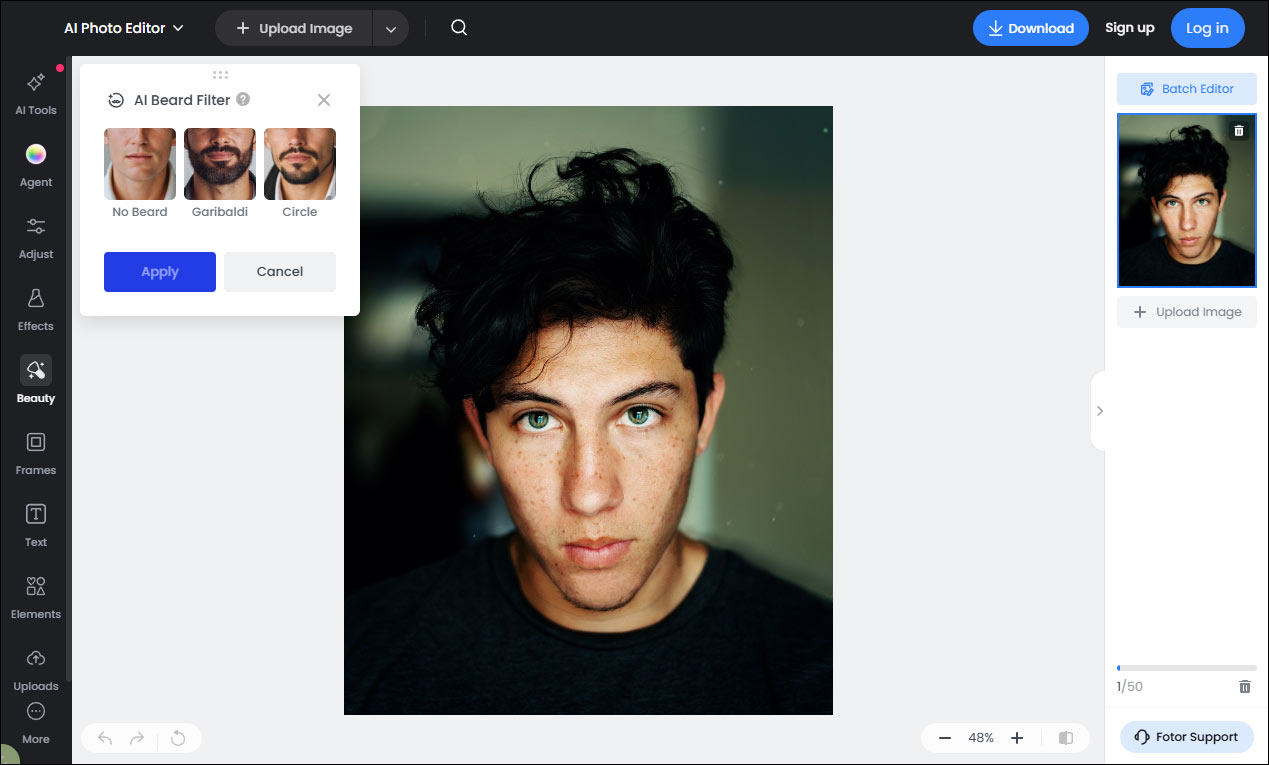
Fotor also provides a one-click tool to add a beard filter to a photo. It offers styles like Garibaldi and circle beard, making it easy for me to try different looks. What’s more, it even includes an option to remove a beard from an image. How can I add a beard filter to a photo online using Fotor? Here is a detailed guide.
Step 1: Upload a Photo
Go to the beard filter tool on the Fotor website (https://www.fotor.com/features/beard-filter/). Click Upload a Photo to upload the image I want to edit.
Step 2: Apply the Beard Filter
Choose a desired beard style and click Apply to add it. It will take a few moments to generate the image with the beard filter.
Step 3: Download the Image
Click the Download option at the top right corner. In the export window, I can rename the file and select an appropriate format.
Method 3: Use VEED
VEED is a popular online video editor that allows me to crop, trim, and add effects to videos. In addition to video editing, it also provides useful image editing tools. Its clean interface makes it easy for me to apply effects and enhance visuals without any complicated steps.
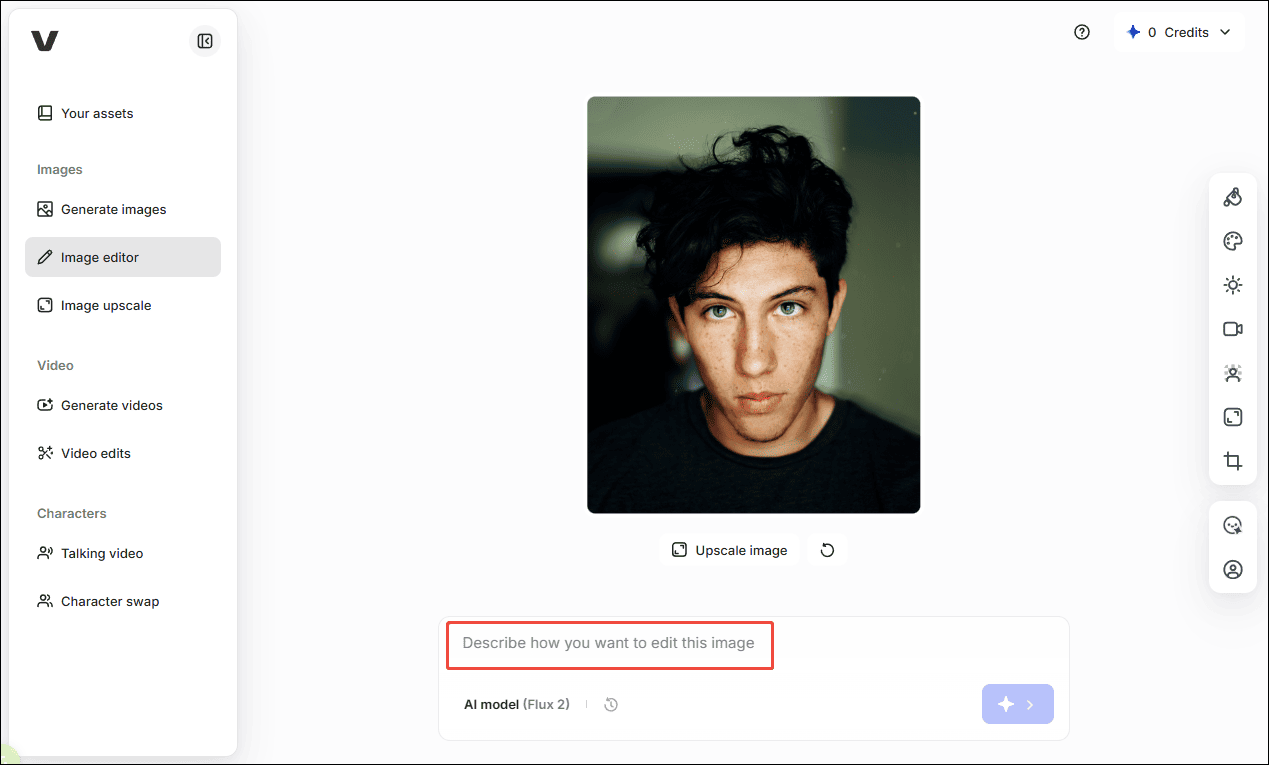
When it comes to adding a beard filter to images, VEED offers AI-powered tools that can generate a suitable beard based on my description, giving me more flexibility and control over the result. Here is how I add a beard filter to a photo using VEED.
Step 1: Upload a Photo
Open the beard filter tool on the VEED website (https://www.veed.io/tools/ai-image-editor/beard-filter). Click Upload an Image to import the image I want to edit.
Step 2: Describe the Desired Beard Style
Enter a description of the beard style I want. Then, click the Arrow icon to start generating the image.
Step 3: Download the Image
After a few seconds, the image with the beard filter will be generated. Click the Download icon to save the edited image to my device.
Conclusion
In this post, I introduced three simple methods to add a beard filter to a photo using YouCam Online Editor, Fotor, and VEED. Each tool is easy to use and delivers quick results. Choose the tool that best fits your taste and give it a try!
User Comments :