

This post introduces the new features of MiniTool MovieMaker 8.6, an excellent Windows video editor, including support for Japanese & German, a new color palette, and other enhancements for better user experiences.
MiniTool MovieMaker is a user-friendly video editing application packed with rich features, aiming to help users, particularly beginners, produce high-quality videos quickly and easily. Now, version 8.6 is available and comes with the following new features and improvements to enhance user experiences.
- Provides support for Japanese and German, offering a localized and user-friendly experience.
- Added a new palette for customizing text, allowing for more attractive and creative video titles or captions.
- Features an improved walkthrough guide, making first-time users master the software easily.
- Fast access to software log files helps users resolve errors more efficiently.
- Optimized export speed for videos with GPU-based effects or filters.
Explore the latest version of MiniTool MovieMaker to edit and create videos in a smoother, faster, and more creative way.
MiniTool MovieMakerClick to Download100%Clean & Safe
MiniTool MovieMaker 8.6 Supports Japanese and German
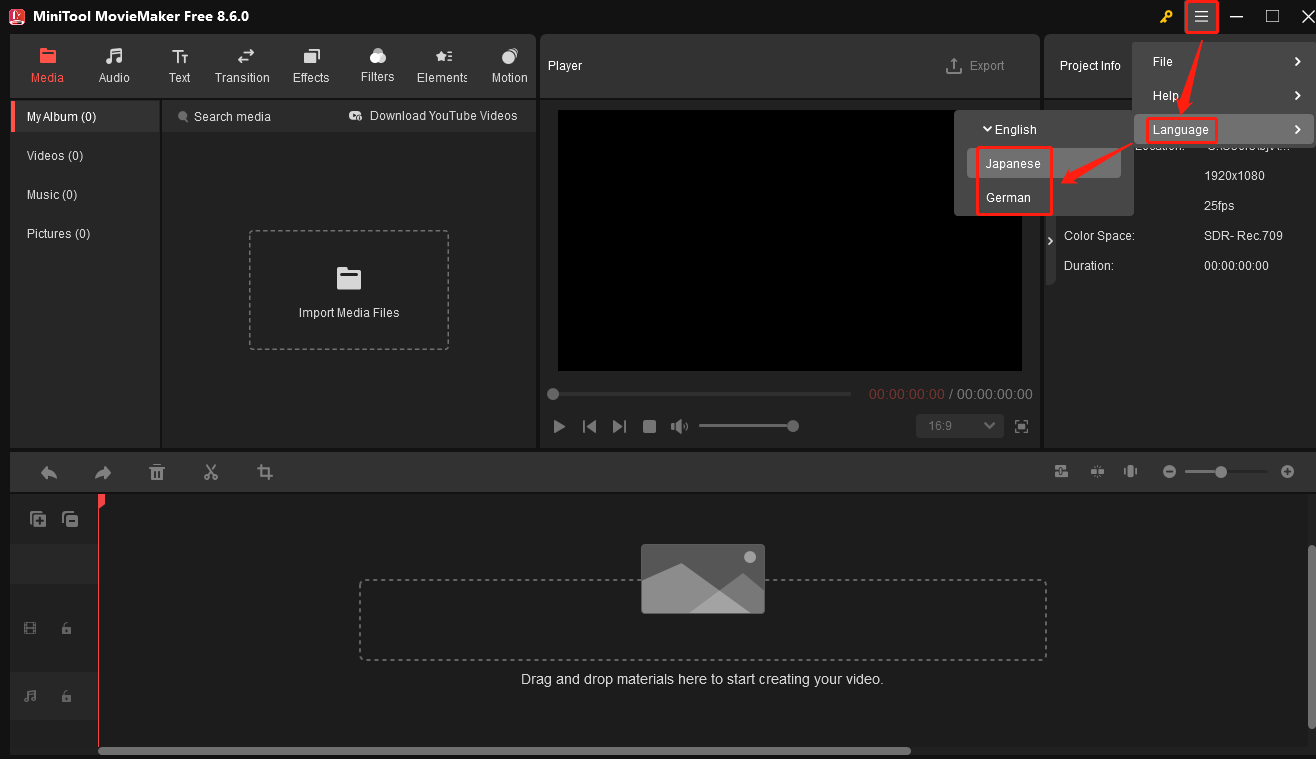
The key enhancement in MiniTool MovieMaker 8.6 is the support for Japanese and German languages. This update allows users in these regions to navigate the software in their native languages, making it easier to understand the tools and settings. Therefore, these users can focus entirely on their video creation without being interfered with by language barriers.
Follow me now to change the display language in MiniTool MovieMaker.
After entering the main interface of MiniTool MovieMaker, click the More icon (three horizontal lines) in the top-right corner, hover over Language, and select Japanese or German from the dropdown list.
MiniTool MovieMaker 8.6 Allows for Custom Text Colors
MiniTool MovieMaker is dedicated to providing extensive tools to help users produce creative and unique videos. In this update, the software includes a new palette that allows users to customize text colors. I really like this feature. Now, I can select the desired color for my titles, captions, and even credits to perfectly match the video’s theme and atmosphere.
How to customize text colors in a video project? Follow me!
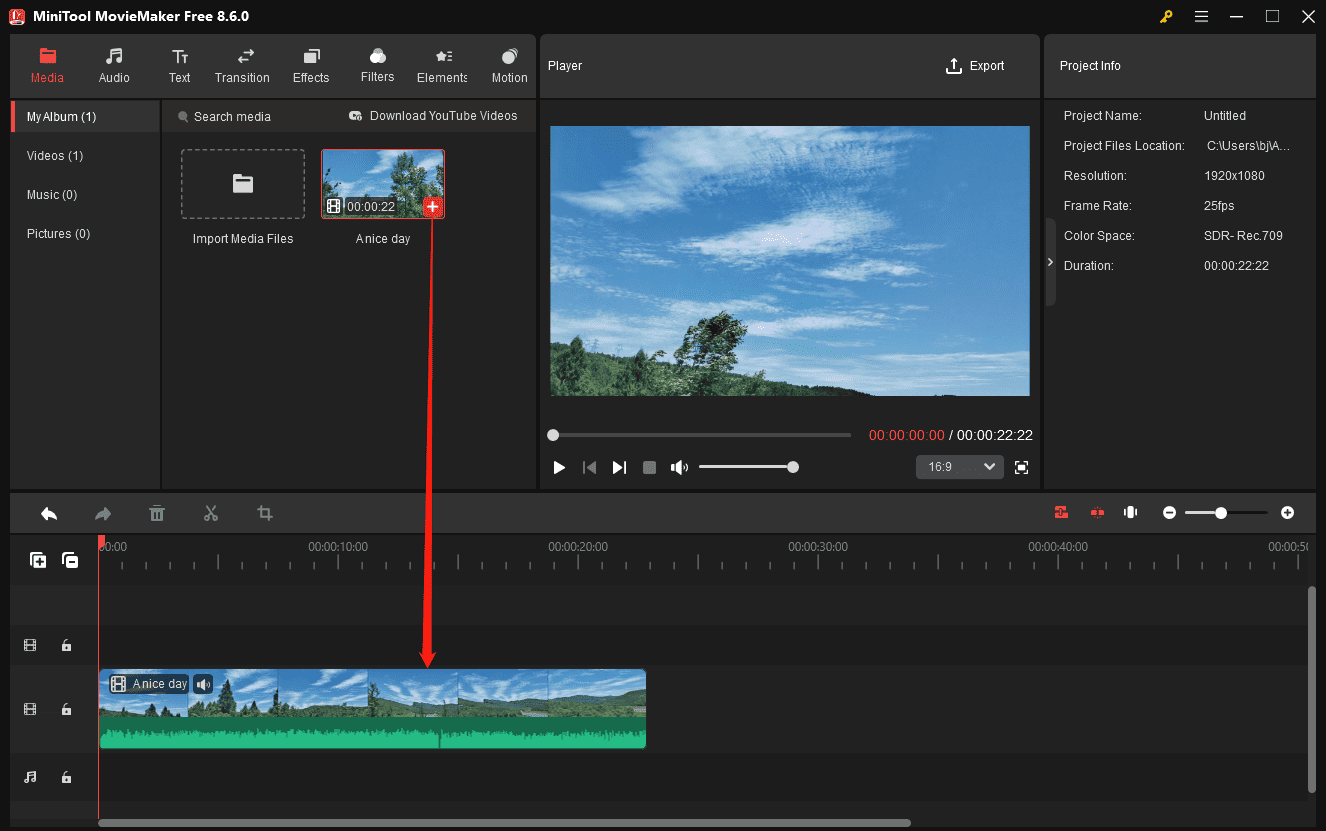
Step 1: Import a Video
After launching MiniTool MovieMaker, click New Project to access the main interface, and click Import Media Files to add the target video. Next, click the + icon on the video to add it to the timeline.
Step 2: Add Text
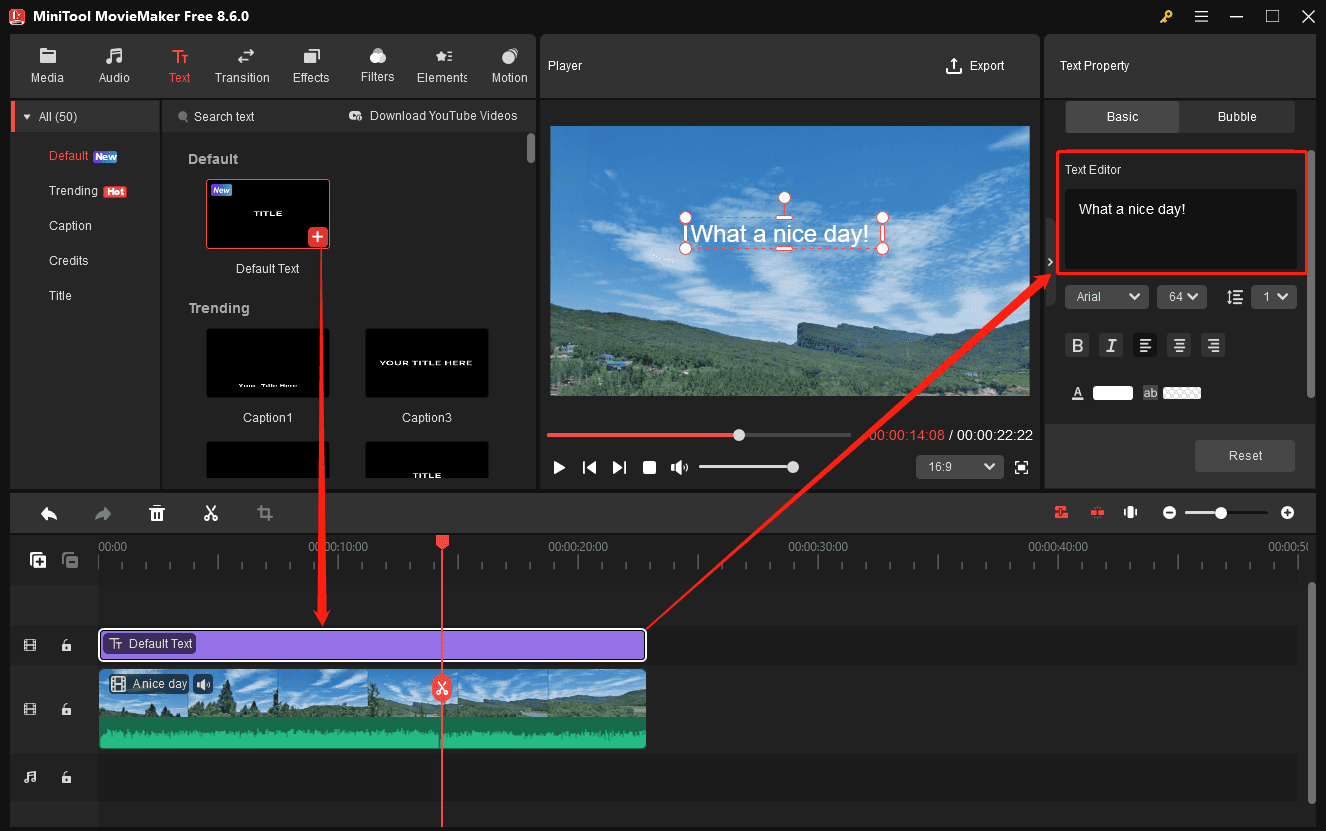
Click Text in the top toolbar and choose a category from the left sidebar.
- Default: add static text overlays to the video.
- Caption: add animated text to videos.
- Credits: add credits at the end of a video.
- Title: add a title card at the beginning of a video.
After confirming the text category, select the desired template and add it to the timeline. Next, go to the Text Editor to enter the desired words.
Step 3: Customize Text Color
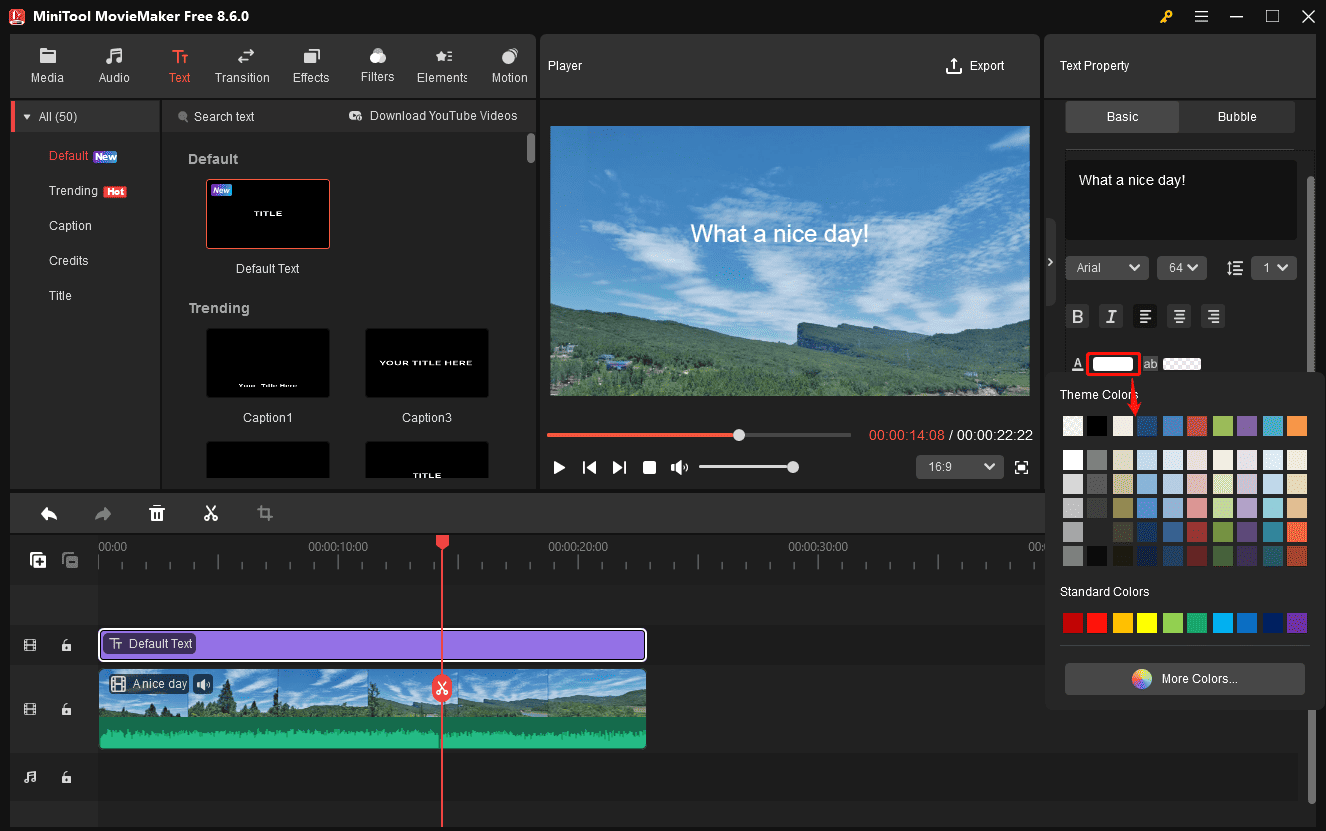
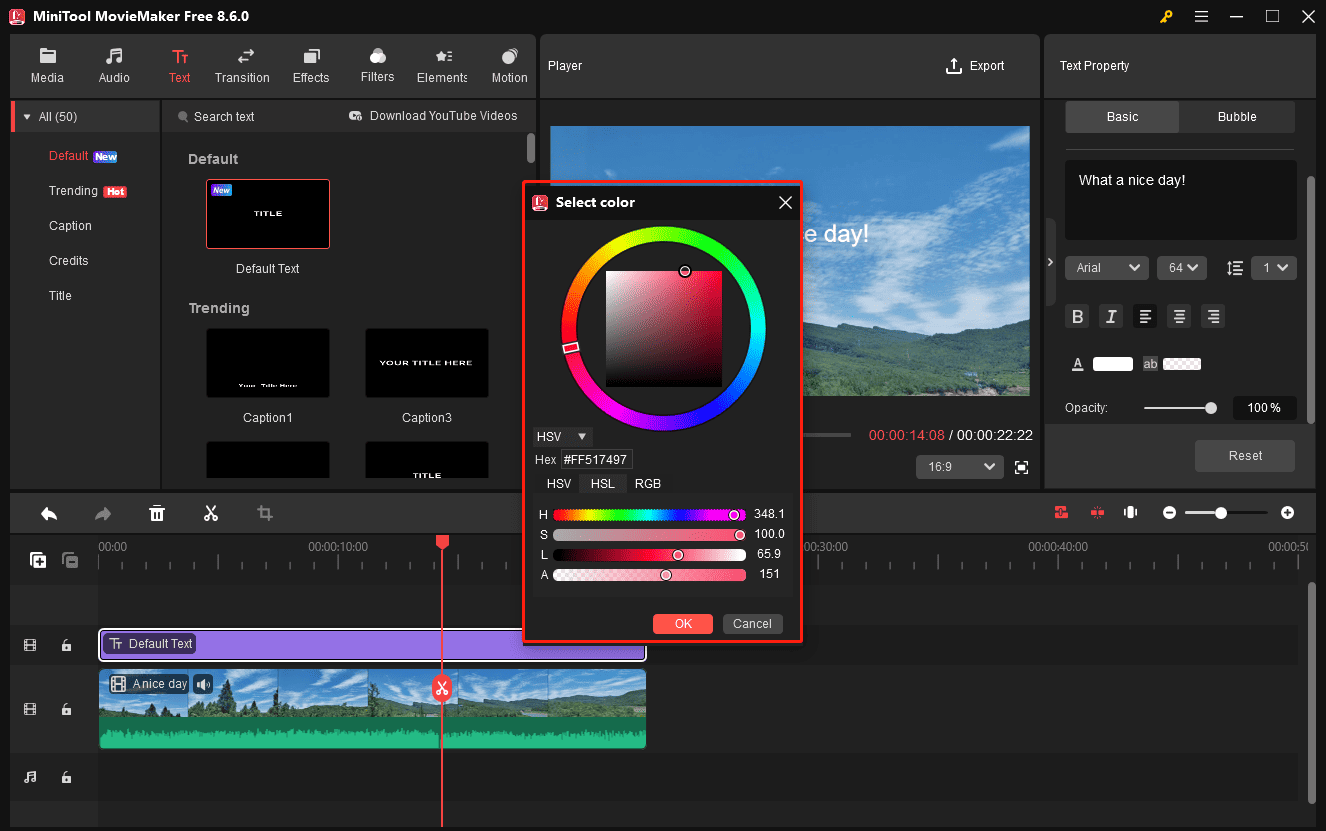
Click the Text Color tab in the Text Property section to open the Theme Colors pop-up. From there, click any preset color to apply it instantly. To customize the color, click the More Colors… option at the bottom.
The Select color pop-up opens immediately. Next, choose a color model to define a specific color.
- HSV (Hue, Saturation, Value)
- HSL (Hue, Saturation, Lightness)
- RGB (Red, Green, Blue)
After confirming the color, click OK to add the color to the text.
Step 4: Export the Video
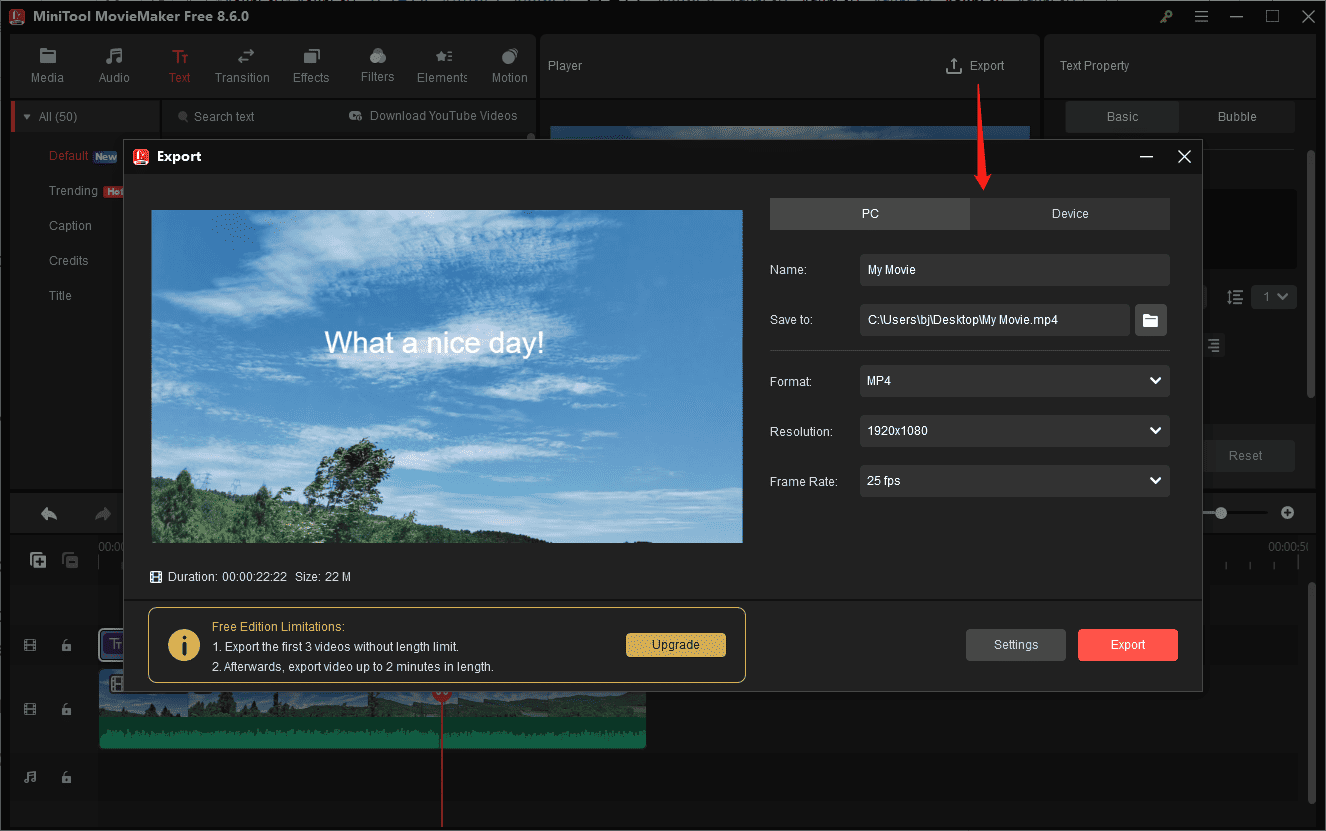
Click Export in the upper right to open the Export window. Confirm the output settings and click Export to begin processing the video.
Other Improvements in MiniTool MovieMaker 8.6
In addition to the language support and a new palette for text colors, MiniTool MovieMaker 8.6 brings other enhancements. Here’s a simple explanation.
Optimized Walkthrough Guide
MiniTool MovieMaker is favored by entry-level users due to its simple layout. In this update, it takes a step further with an optimized walkthrough guide to help first-time creators learn how to import media, add footage to the timeline, apply filters, and export a project.
Quick Access to Log Files
Additionally, MiniTool MovieMaker 8.6 includes quick access to the software log data by clicking More > Help > Log file location.
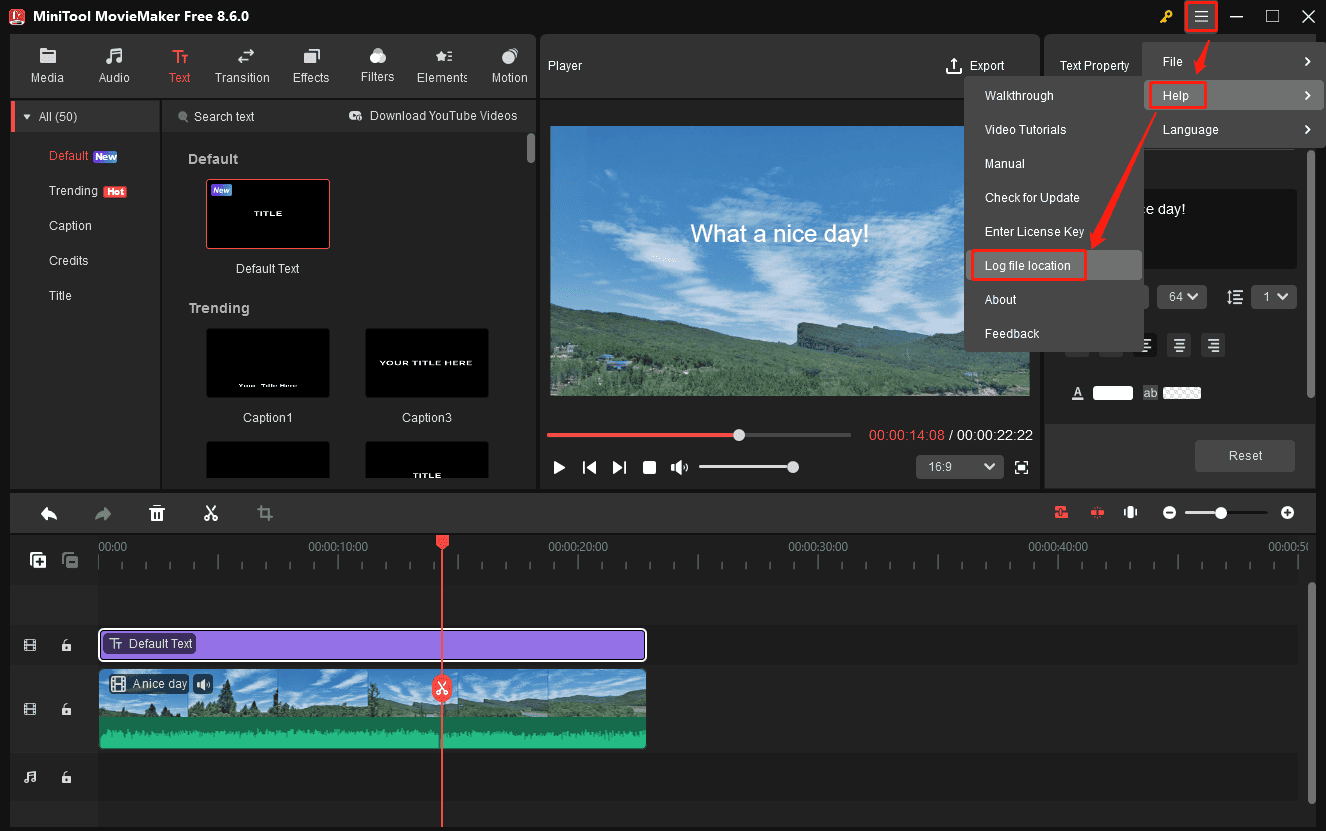
When encountering errors or unexpected situations, users can directly access the log data and send it to the support team for assistance.
Faster Export Speed
Furthermore, MiniTool MovieMaker 8.6 optimized the export speed for videos with GPU-based effects or filters.
Conclusion
MiniTool MovieMaker 8.6 added Japanese and German display languages, custom text colors, an enhanced walkthrough guide, improved troubleshooting, and faster export speeds. These improvements ensure text customization for creative videos and deliver a smoother user experience. Try MiniTool MovieMaker 8.6 now and start video creation in a smoother and faster workflow!
About The Author

Position: Columnist
Cora is a tech writer specializing in digital media workflows, with over six years of hands-on experience in video post-production, media transcoding, and screen capture. Her writing is always clear and practical. Cora also produces in-depth software reviews for users across skill levels to help them find the right tool and enjoy video editing.
User Comments :