

This post explains how to edit a Snapchat video using the built-in editor on a smartphone and for direct sharing or using MiniTool MovieMaker on a Windows PC.
Snapchat is widely known for its disappearing messages and creative filters. When recording or sharing videos on Snapchat, you may want to edit them to make your content more polished and engaging. This post explains how to edit a Snapchat video using the built-in editing features and a third-party video editor, MiniTool MovieMaker.
| Comparison Dimension | Snapchat Built‑in Tools | MiniTool MovieMaker |
| Platform | Mobile (iOS / Android) | Windows PC |
| Price | Free | Free + Ultimate |
| Export Without Watermark | Yes | Yes |
| Precise Timeline Editing | Basic (drag edges) | Professional (frame level) |
| Multi‑track Support | Only audio/text multi‑track; single video track | Up to 9 video tracks |
| Transitions | Basic | Rich (adjustable duration/style) |
| Effects / Filters | AR filters (dynamic) | Traditional filters (color grading) |
| Adding Music | Snapchat music library + upload | Local import + built‑in library |
| Direct Share to Snapchat | Yes | No, requires manual upload |
| Best For | Quick creation and posting of fresh content | Fine‑tuned editing before posting to Snapchat |
Can You Edit a Video in Snapchat
Yes, Snapchat allows you to edit recorded videos directly or enhance videos saved in Memories, including those from your Camera Roll and Stories, using its built-in editing features. It includes several basic tools, such as:
- Timeline Editor: This tool lets you edit multi-clip Snaps with features such as split, reverse, and crop. You can also duplicate, replace, rearrange, or delete clips. It allows you to add captions, drawings, stickers, voiceovers, and links, as well as adjust the video speed (2x, 3x, or slow motion).
- Quick Cut: Available within Memories, this feature automatically selects, trims, and syncs multiple clips with music to create a ready-to-share video.
- Content Library: The extensive library offers a variety of creative resources such as sounds, music, text templates, stickers, Lenses, and filters to enrich the short video content.
How to Edit a Snapchat Video
The following section will explain how to edit a Snapchat video using the built-in editing tools and MiniTool MovieMaker. Let’s review them one by one.
Method 1: Use the Built-in Editing Tool
Fast Track:
- Open the Snapchat mobile app and record a video.
- Trim the video and add text and music.
- Save or share the video.
Step 1: Open Snapchat and Record Your Video
Open Snapchat and tap the Record icon above the Camera tab to start recording. You can also choose a desired filter to take videos. To record without holding the button, you can swipe your finger to the Lock icon on the left for better performance. After recording, the application will automatically show a preview of the video, and you can edit it directly in the preview screen.
If you want to edit videos from Memories, tap the Two Stacked Cards icon next to the Record button to open Memories. Then, select the video you want to edit and tap Three Dots in the upper-right corner and choose Edit Video.
Step 2: Trim the Video
Tap the video thumbnail in the lower-left corner. Drag the edge of the video inwards to trim unnecessary parts. Then, tap the Check Mark to save your changes.
Step 3: Add Content to the Video
With Snapchat’s intuitive editing tools, you can easily customize your video by adding text, music, and other elements. Tap the T icon to bring up the keyboard. Then, tap the Hue icon to choose your preferred color, and swipe through the font options to select the one that fits best. After typing your text, drag it to reposition it within the video.
To add music or sound, simply tap the Music icon to choose from popular tracks. You can also upload an existing file or record your own audio by tapping Create Sound under the My Sounds tab. Also, Snapchat allows you to trim the audio to match your video length.
Step 4: Save or Share the Video
After editing, tap the Download icon in the lower-right corner and choose whether to save it to Memories or Memories & Camera Roll. In Memories, tap the video, press the Three Dots icon again, and select Export or Send Snap. Then, you can download the video or share it on other platforms like TikTok and X.
Although these built-in tools are easy to use, they have some limitations. While Snapchat supports multi-track editing for elements like audio and text in the Timeline Editor, videos and photos are limited to a single track. Additionally, compared with professional video editors, it offers fewer advanced transitions, detailed effect controls, and highly customizable editing settings.
If you want to create more polished videos with seamless cuts, advanced effects, and greater editing flexibility, consider using a dedicated Snapchat video editor such as MiniTool MovieMaker.
Method 2: Use MiniTool MovieMaker
Fast Track:
- Launch MiniTool MovieMaker.
- Set the aspect ratio to 9:16.
- Add the video clips.
- Rotate, flip, and adjust the playback speed.
- Add elements, transitions, text, and music.
- Export the video.
MiniTool MovieMaker is a Windows video editor that balances essential features with ease of use, making it ideal for both beginners and experienced users. Its clean interface offers basic tools like trimming, splitting, cropping, and rotating. For advanced needs, it supports up to 9 video tracks for picture-in-picture and overlay effects.
MiniTool MovieMaker provides flexible aspect ratios, including 9:16 for TikTok and Snapchat, as well as 16:9, 4:3, and 1:1. You can choose the ratio before or during editing. It also includes a rich library of music, text templates, transitions, effects, filters, elements, and motions to easily enhance your Snapchat videos.
Step 1: Download MiniTool MovieMaker
Click the button below to download the video editor. Then, follow the on-screen instructions to complete the installation on your computer.
MiniTool MovieMakerClick to Download100%Clean & Safe
Step 2: Import Your Snapchat Video
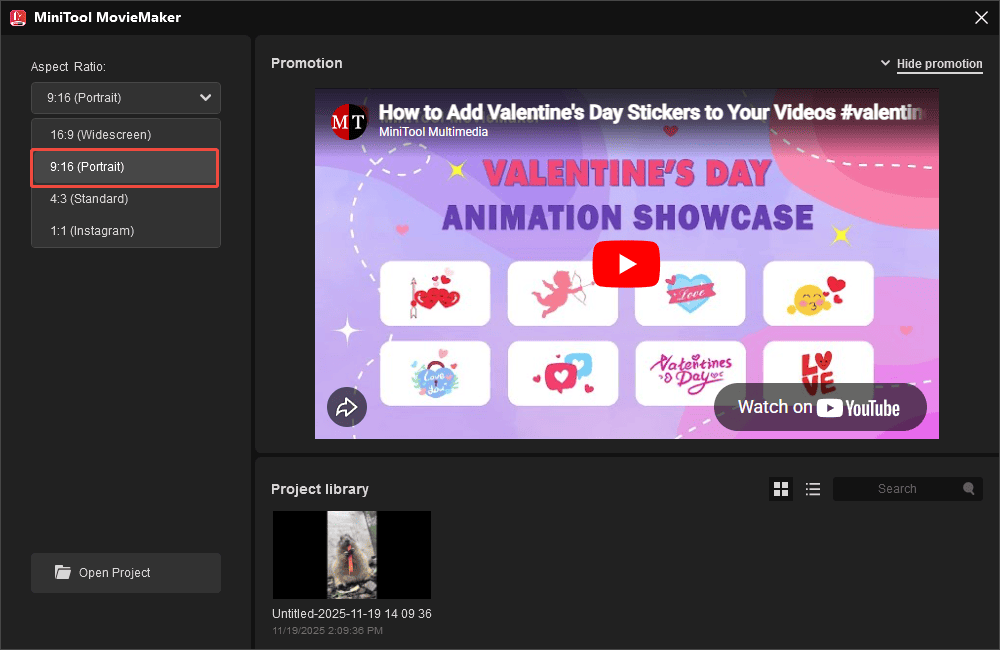
Launch MiniTool MovieMaker and open the Aspect Ratio dropdown list in the pop-up project library window. Choose 9:16(Portrait) and click New Project to access the editing interface.
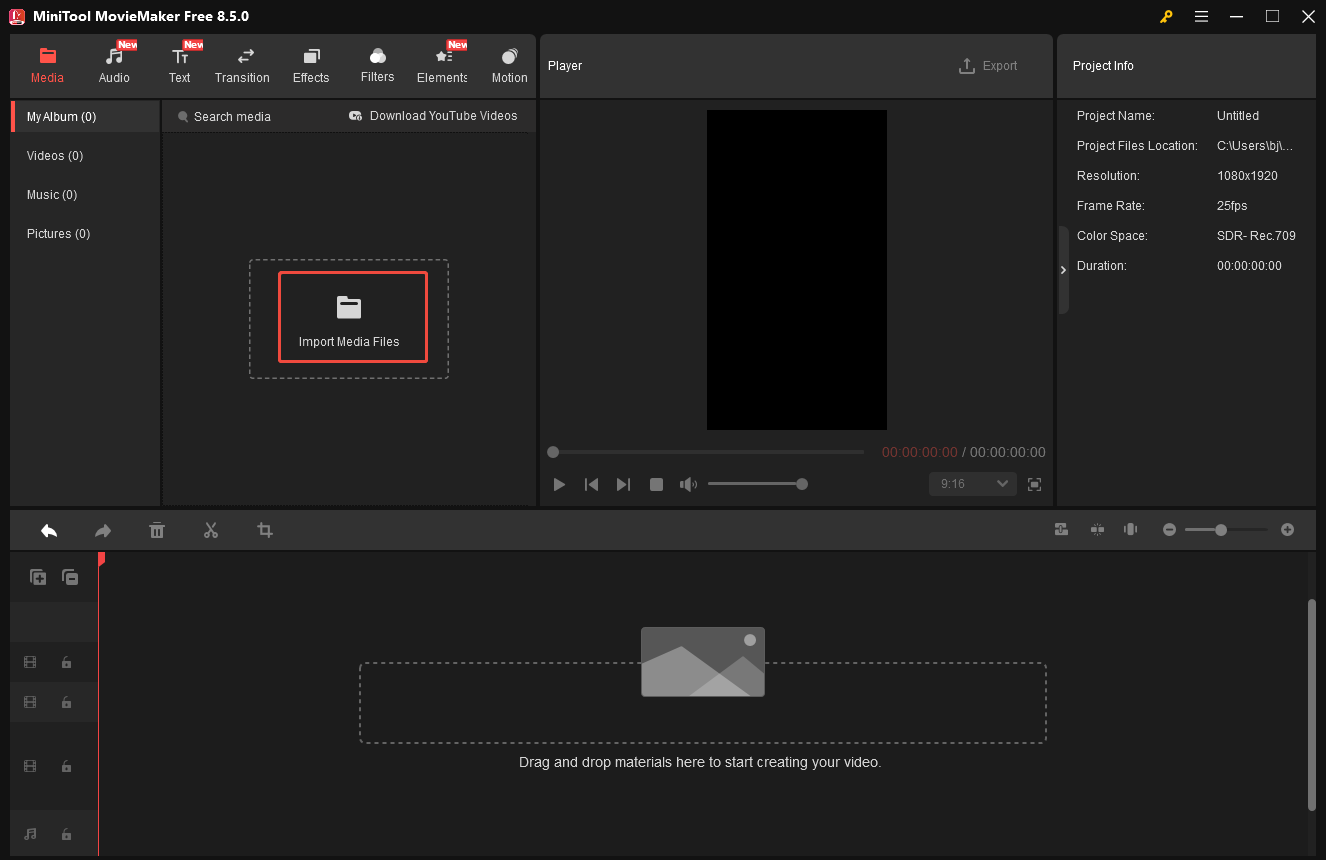
Click Import Media Files to upload your Snapchat video. Then, click the Plus icon on the video to add it to the timeline.
Step 3: Adjust Video Properties
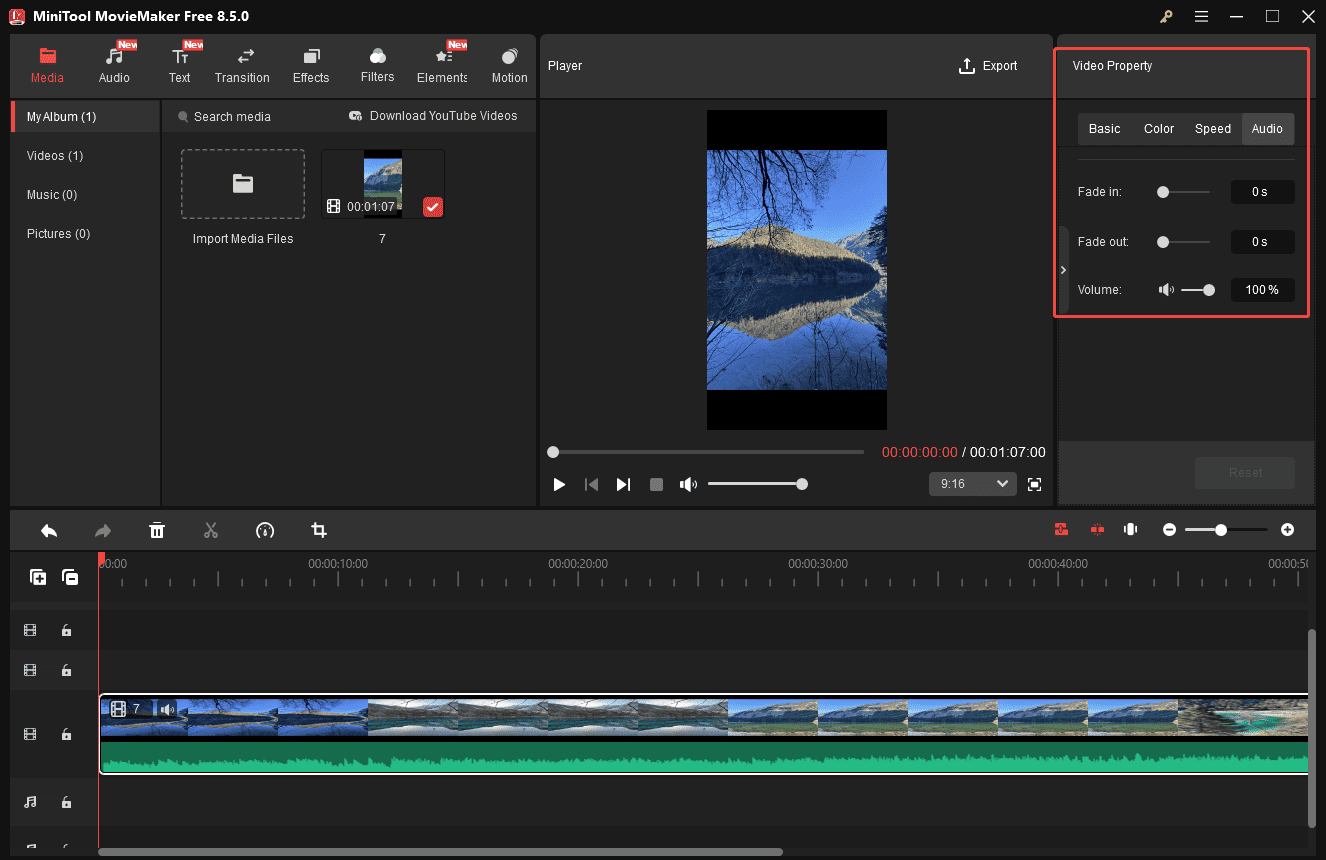
Click on the video track in the timeline and adjust the basic properties in the right Video Property panel. Click the Flip icon to horizontally or vertically flip the video. Move the Rotate and Scale sliders to adjust the video’s angle and size. Switch to the Color tab and adjust the video contrast, saturation, and brightness by dragging the sliders.
To adjust the speed, go to the Speed tab to speed up or slow down the video. You can also add fade-in/out effects or mute the video by adjusting the volume slider.
Step 4: Trim and Split the Video
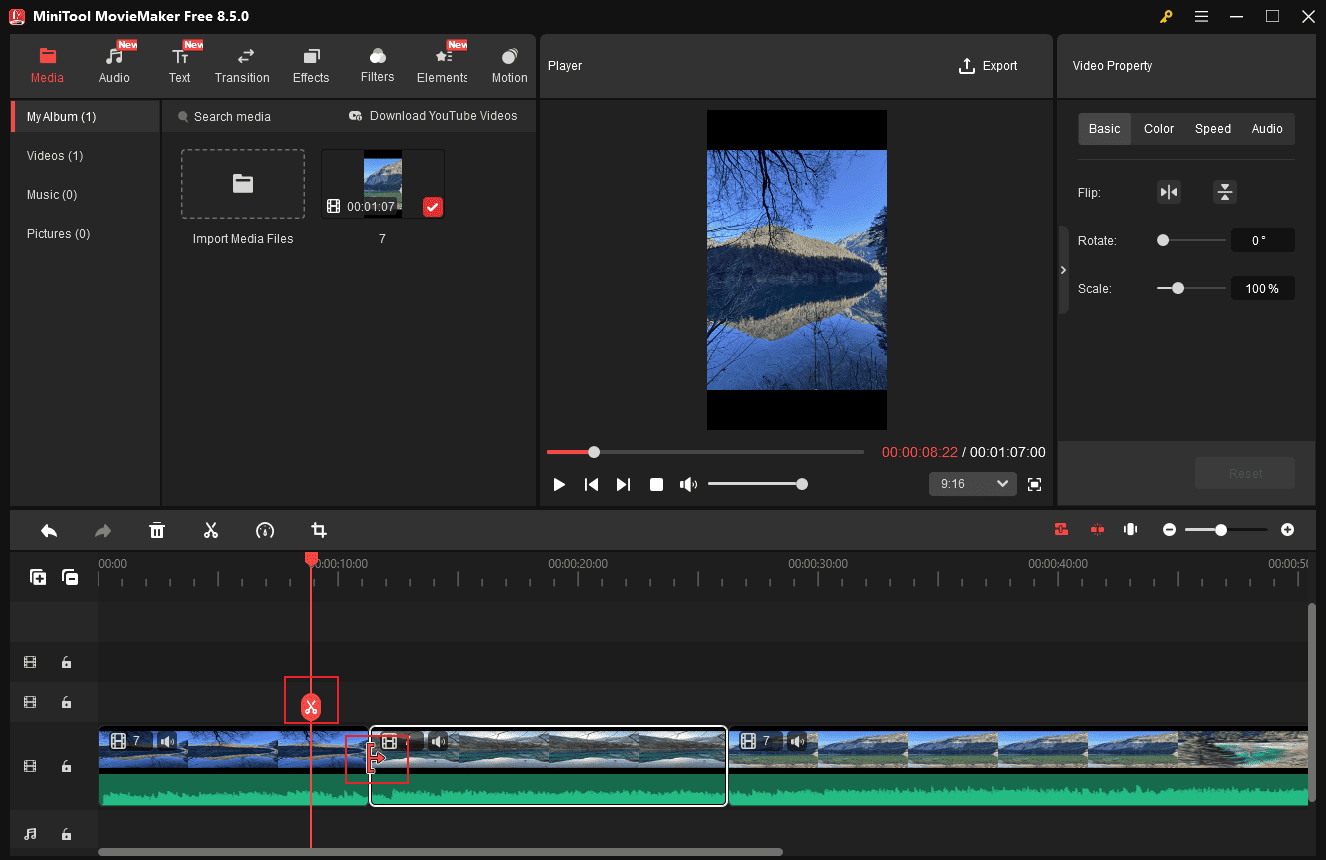
Trimming is an effective way to eliminate unnecessary sections at the beginning or end of the video. Hover your mouse cursor over the start or end of the clip until the Trim icon appears. Then, drag it inwards to remove the unwanted part from the video.
To remove a section in the middle of the video, use the Split tool. Move the red playhead to the start of the unwanted section and click the Split icon. Then, drag the playhead to the end of the section and click Split again to extract it from the video. Right-click the unwanted clip and select Delete to remove it.
Step 5: Polish the Snapchat Video
To make your Snapchat video more engaging, you can enhance it with elements, transitions, text, and music.
Add Elements
Elements can spice up the Snapchat video and add a fun touch to it.
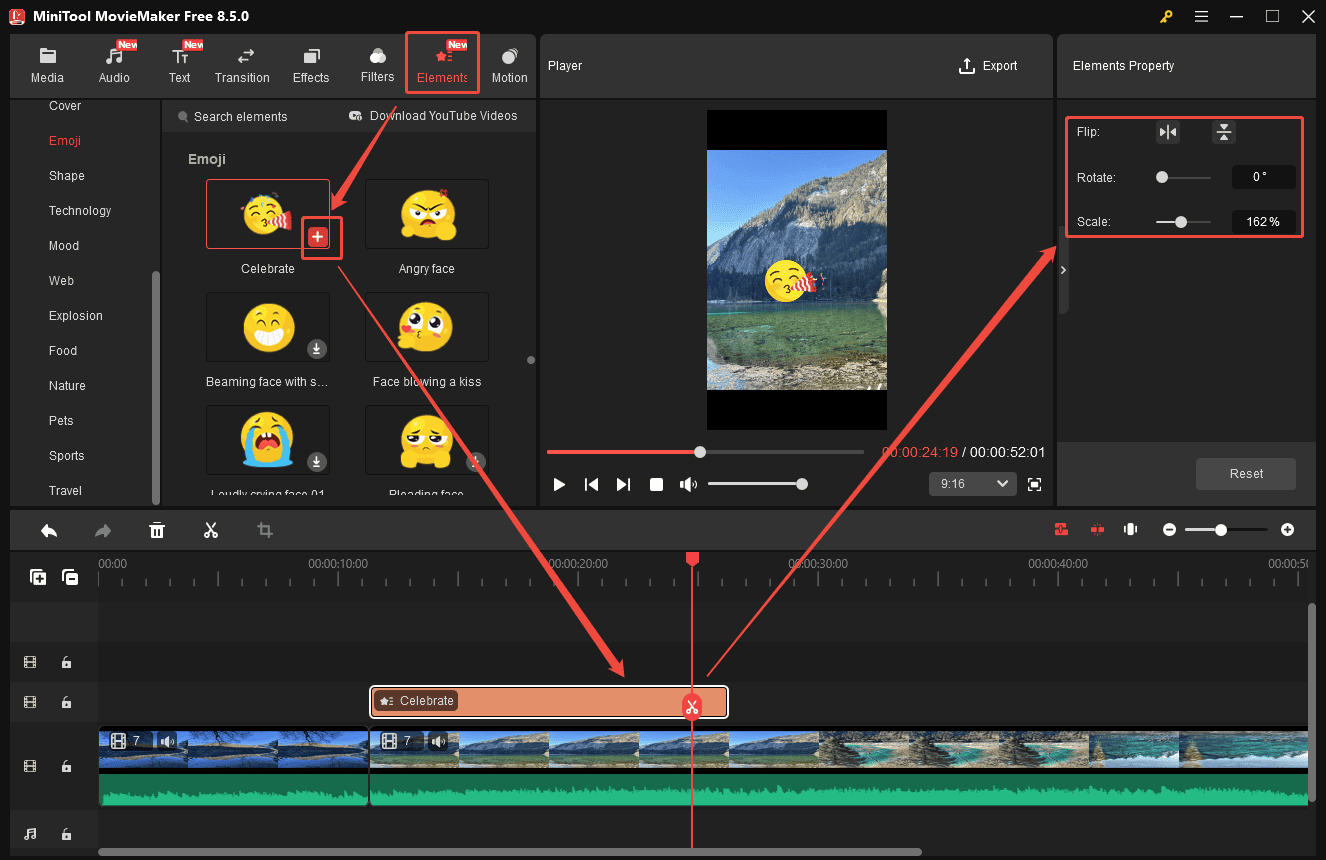
Click the Elements tab at the top of the menu. Scroll down to find an appropriate sticker. Hover over it to preview its animation. If you are satisfied with it, download it and click the Plus icon to add it to the timeline. Drag the edge of the sticker layer on the timeline to set its duration. In the right Elements Property panel, resize or rotate it by moving the sliders.
Add Transition
Transitions help smooth the flow between clips, making the video feel more cohesive.
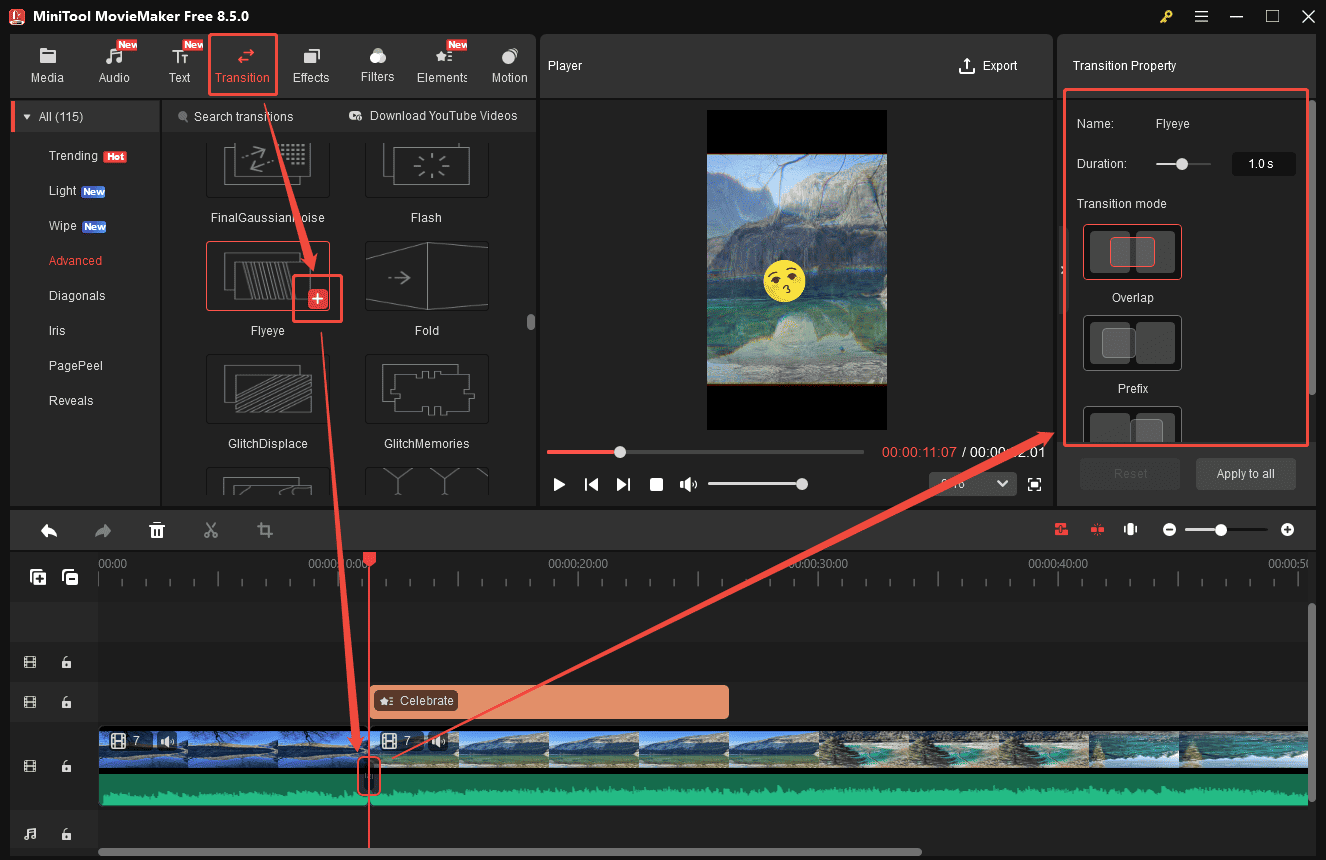
Navigate to the Transitions tab at the top menu. Hover the cursor over the thumbnail to preview its animation. Choose the desired transition effect and click the Plus icon to add it to your clips. In the right Transition Property panel, adjust its duration by moving the slider. You can also change the transition mode, including overlap, prefix, and postfix options.
Add Text
Adding text improves the clarity and accessibility of your video for a wider audience.
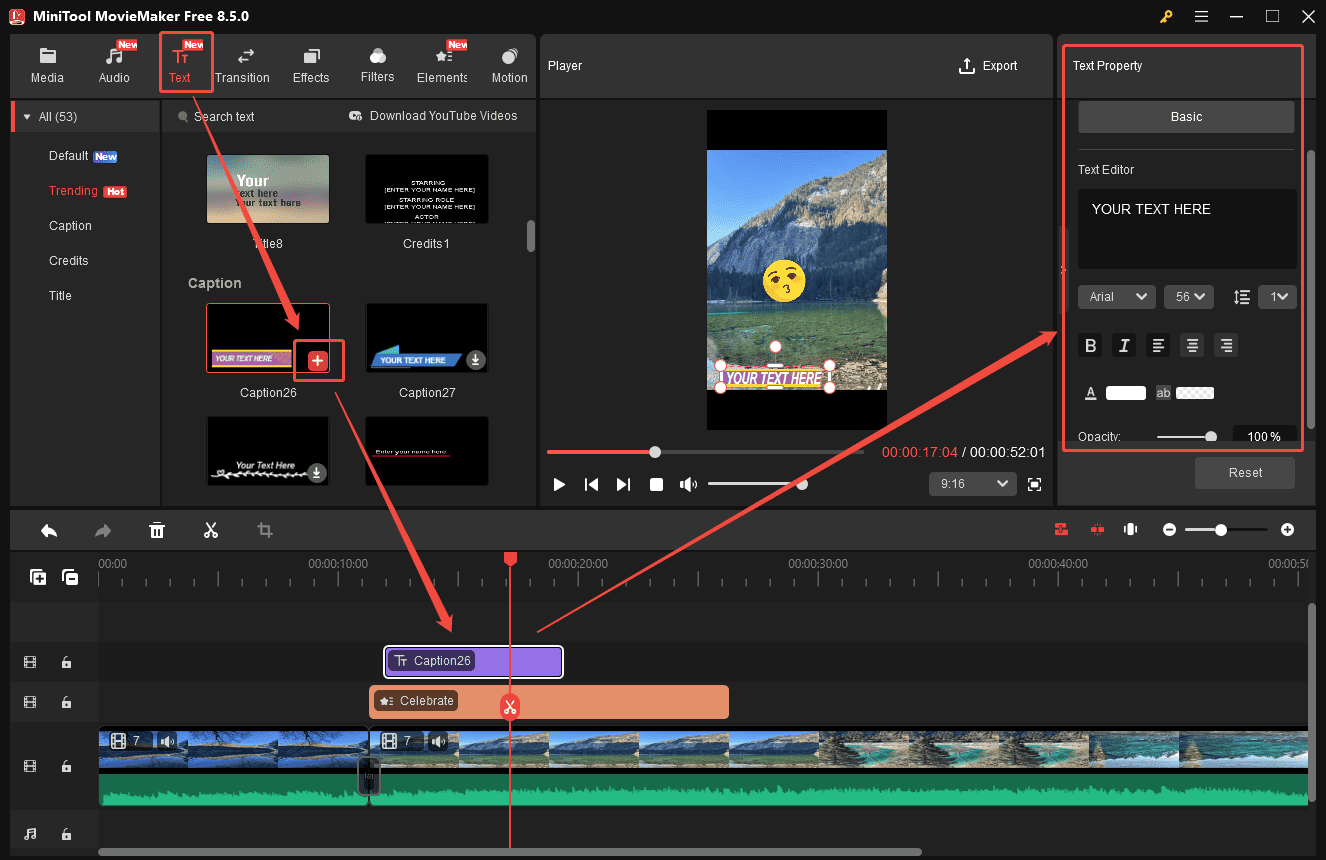
Head to the Text tab and pick your desired template. Download it and drag it to the timeline. Adjust the text duration by dragging the edge of the text layer. Then, type the text and customize its font, color, size, and other styles in the right Text Property panel.
Add Music
Music enhances the mood and atmosphere of your video, making it more immersive and dynamic.
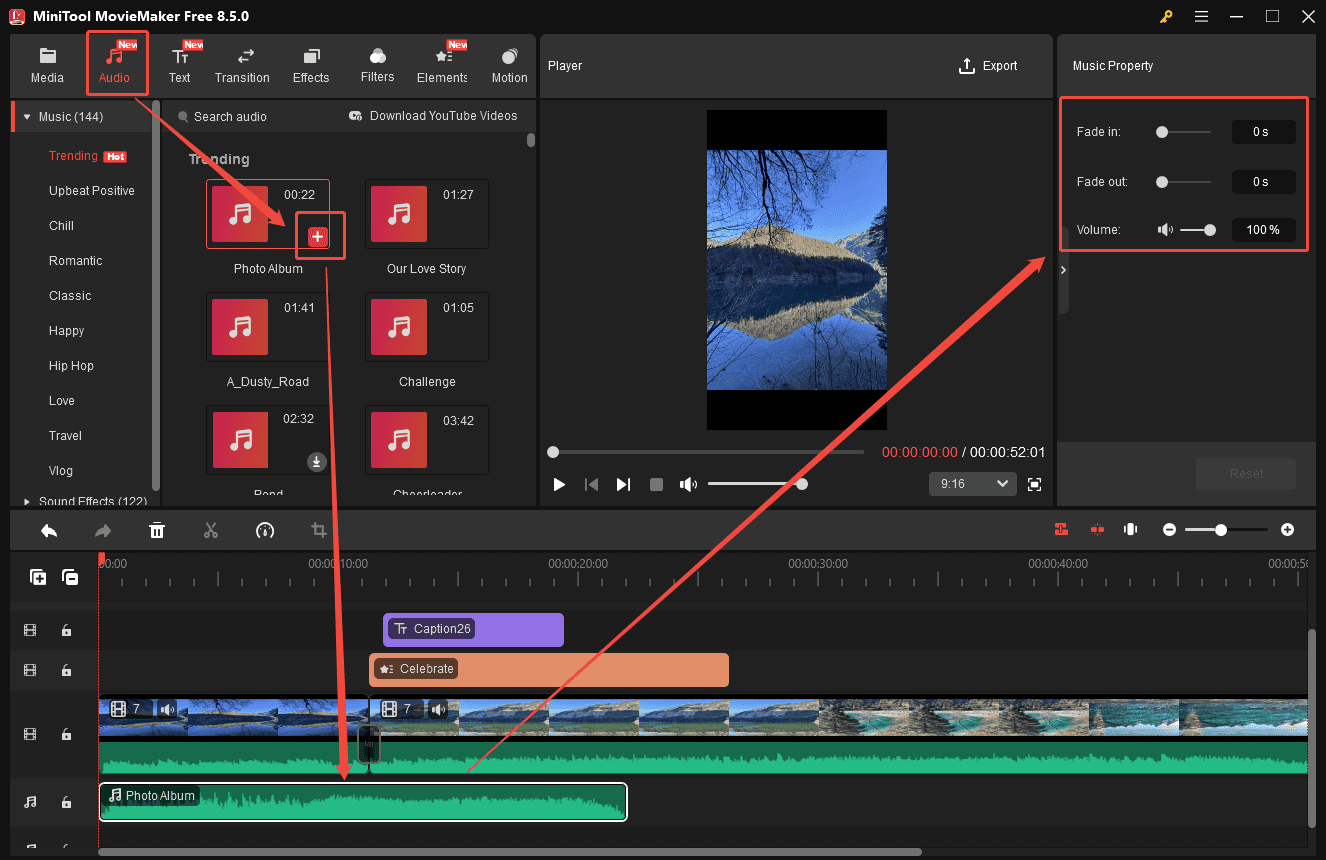
Click Audio to access the music and sound library. Browse the categories and choose the preferred music. Click the Download icon and drag it to the timeline. You can also add your own audio file by uploading it. Trim the audio track to match the length of your Snapchat video. In the Music Property panel, apply the fade-in/out effects or adjust the volume by moving the sliders.
Step 9: Export the Snapchat Video
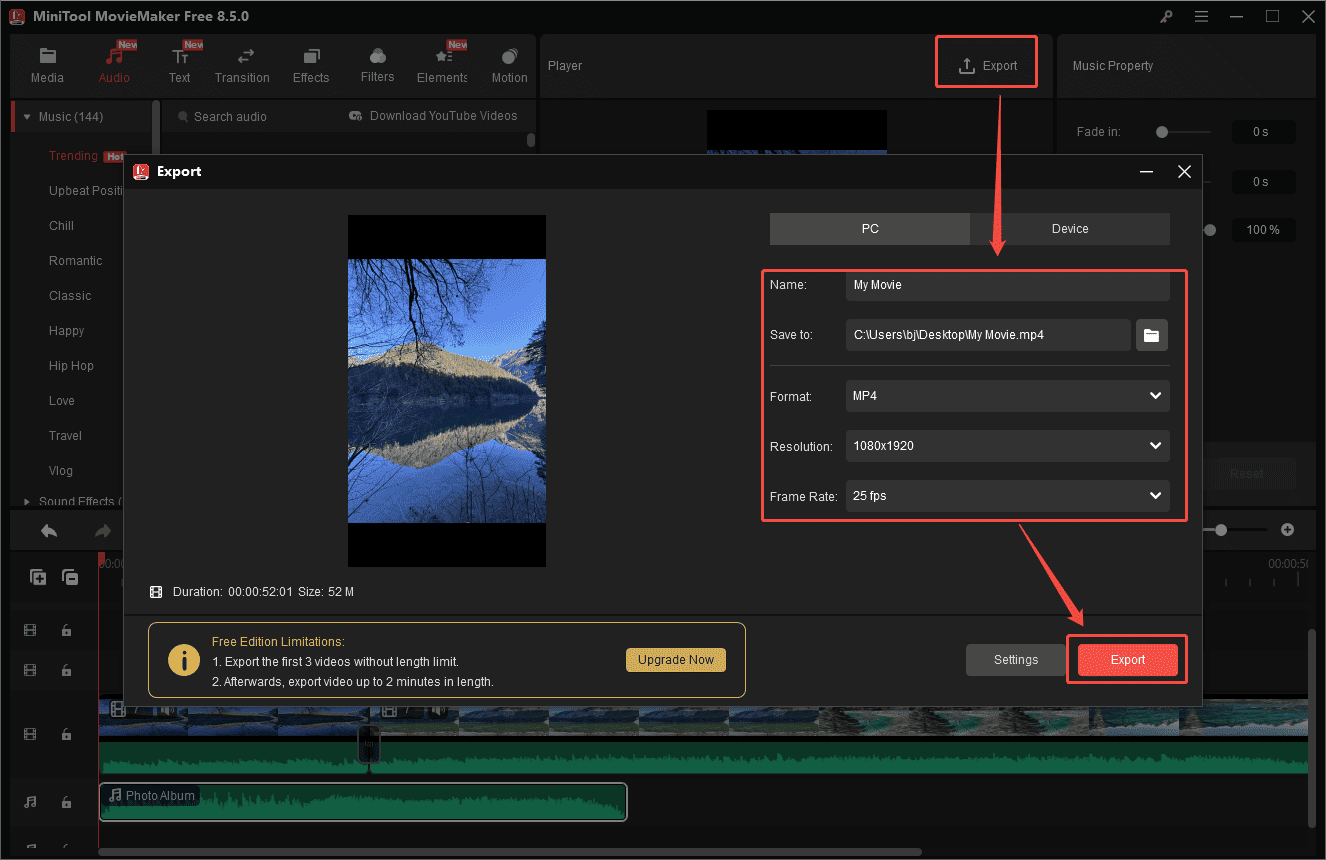
Once editing is complete, click Export above the player window. In the Export window, rename your Snapchat video, select a save location, and adjust the resolution, frame rate, and bitrate. When you’re ready, click Export at the bottom to save the video to your computer.
Now that you know how to edit a Snapchat video on Windows using MiniTool MovieMaker, you can easily create professional-looking content with ease.
MovieMaker by MiniTool is an inexpensive, easy-to-use video editing program. It includes a fair number of effects and gives you easy ways to join your clips, add transitions, and overlay objects and text.https://www.pcmag.com/reviews/minitool-moviemaker
Conclusion
This post explains how to edit a Snapchat video with two effective and reliable methods. While Snapchat’s built-in editing tools offer convenience for quick edits on mobile, MiniTool MovieMaker provides more advanced features for desktop users looking to take their videos to the next level. Choose the tool that best fits your needs and follow the steps above to transform your Snapchat videos into eye-catching creations that stand out and captivate your audience.
If you have any suggestions or encounter any problems when using MiniTool MovieMaker, please don’t hesitate to contact us via [email protected].
How to Edit a Snapchat Video FAQ
About The Author

Position: Columnist
Cora is a tech writer specializing in digital media workflows, with over six years of hands-on experience in video post-production, media transcoding, and screen capture. Her writing is always clear and practical. Cora also produces in-depth software reviews for users across skill levels to help them find the right tool and enjoy video editing.
User Comments :