

This post explains how to remove color from images in three different situations. Use Photoshop or Remove.bg for background color removal, ImgOnline.Tools for deleting a specific color, and Microsoft Photos for deleting all colors from an image.
When working with images, I always need to remove the background color to make them transparent, allowing the main subject to stand out. Sometimes, I also want to remove a specific color or delete all colors from an image for various purposes. Therefore, in this post, I’ll illustrate how to remove color from images in different situations.
How to Remove Color from Images
In this section, I will describe how to remove color from images in three scenarios.
Case 1: Remove Background Color from Images
When I need to extract a subject from an image and place it into another photo, or eliminate distracting elements in the background, I choose to remove the background color. Then, I’ll share two tools I frequently use for this purpose.
Option 1: Adobe Photoshop
As the industry-leading image editing software, Photoshop offers powerful background removal tools.
Step 1: Open a photo
After running Photoshop, click File > Open to open the target photo.
Step 2: Unlock the image layer
Click the Lock icon in the Layers section to unlock the layer.
Step 3: Remove the background
Method 1: Go to Window > Properties to open the Properties pop-up, scroll down to the Quick Actions section, and click Remove Background. Then the entire background will be deleted immediately.
Method 2: Click Select > Subject to have the software select the subject in the image. Next, press Q on the keyboard and use the Brush tool to paint over the areas I don’t want, and press Q again to switch back. Then, click the Add layer mask icon in the lower-right corner to remove the background.
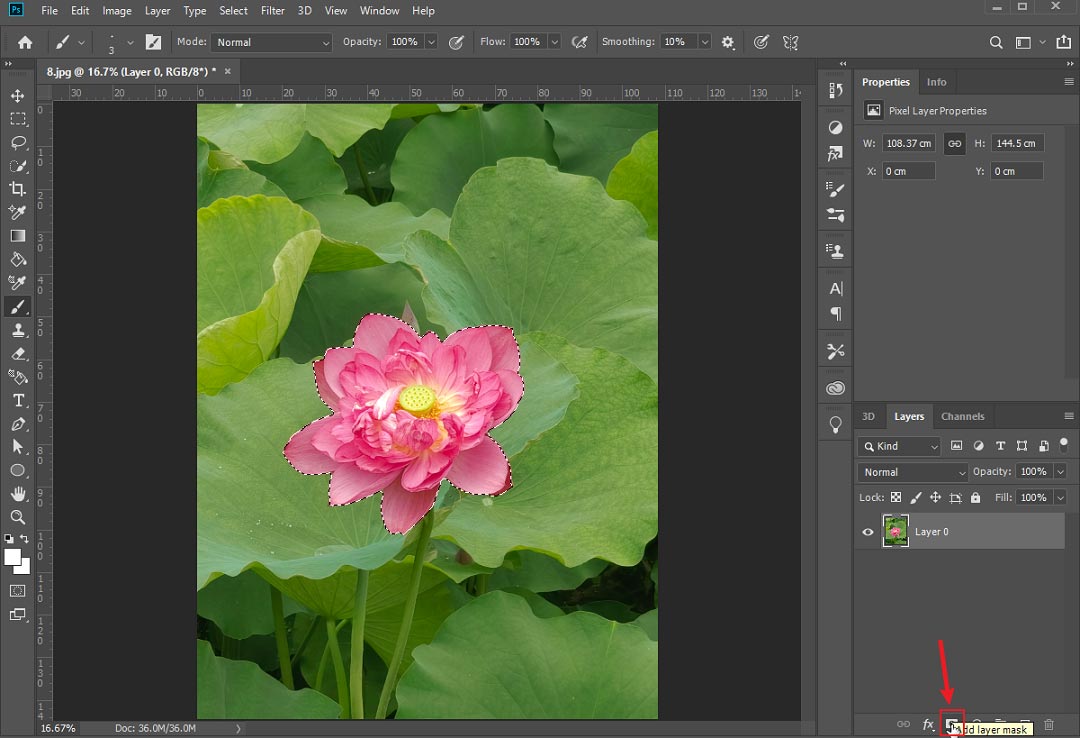
Step 4: Save the photo
Click File > Export > Save for Web (Legacy) and configure settings to save the photo.
Option 2: Remove.bg
Remove.bg is an online tool for removing image backgrounds. It allows me to delete the background from an image with one click. After I upload a photo, the tool automatically starts processing the image. However, it doesn’t offer options to customize the area I want to remove.
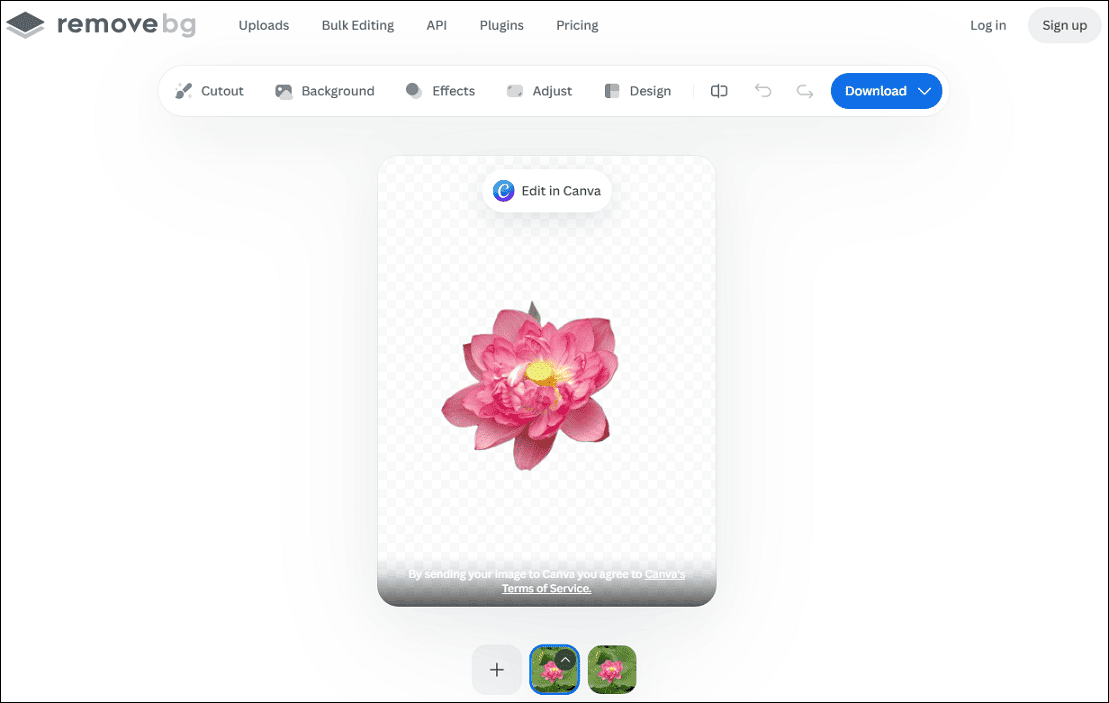
Case 2: Remove a Specific Color from Images
With the rapid development of image processing tools, it’s now possible to remove certain colors from images. In this part, I’ll explain how to remove a color from an image using ImgOnline.Tools.
Step 1: Find the color remover tool on ImgOnline.Tools
Go to ImgOnline.Tools website and click Image manipulation on the left sidebar. From the dropdown list, find and click Remove color.
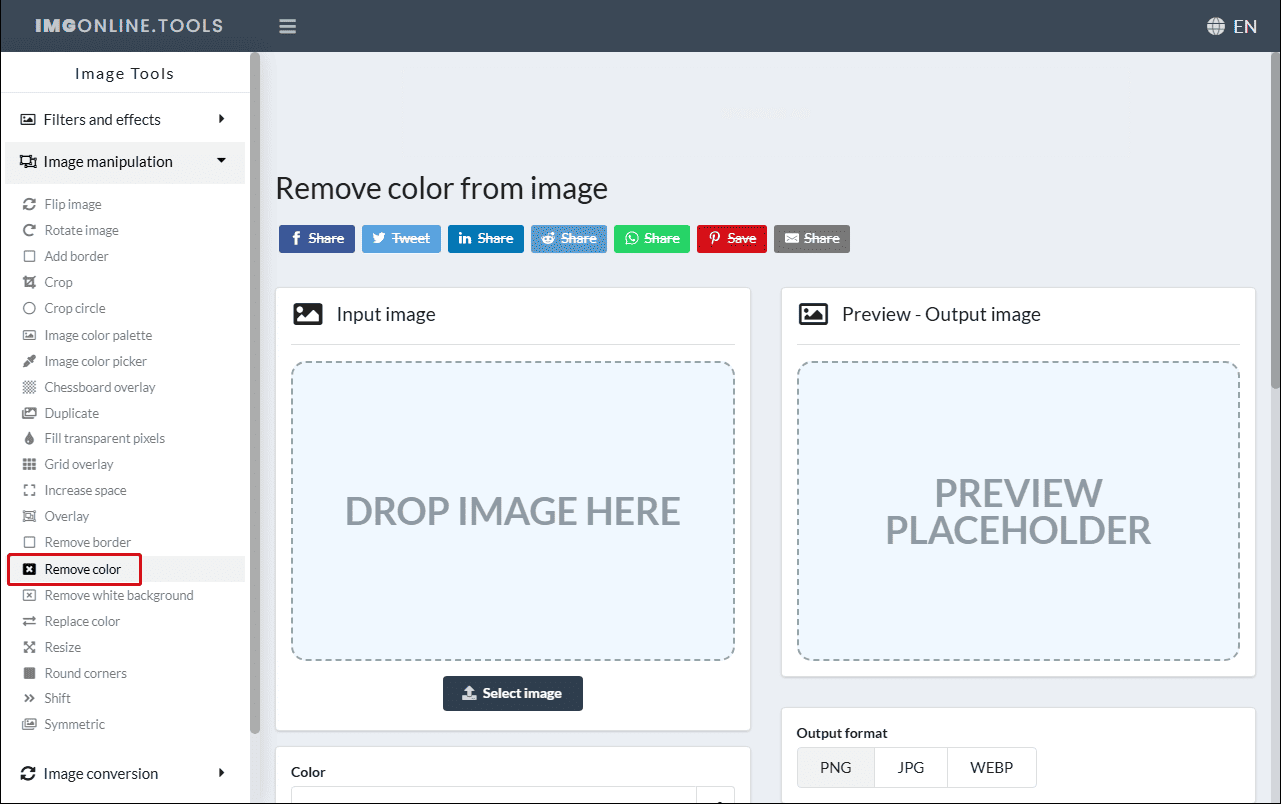
Step 2: Upload a photo
From the right side, click the blue area to open the target photo.
Step 3: Remove a color
Click the color picker icon to select the color I want to remove from the image. I can also adjust the distance to remove similar colors. Then I can click Remove and view the result image in the right panel.
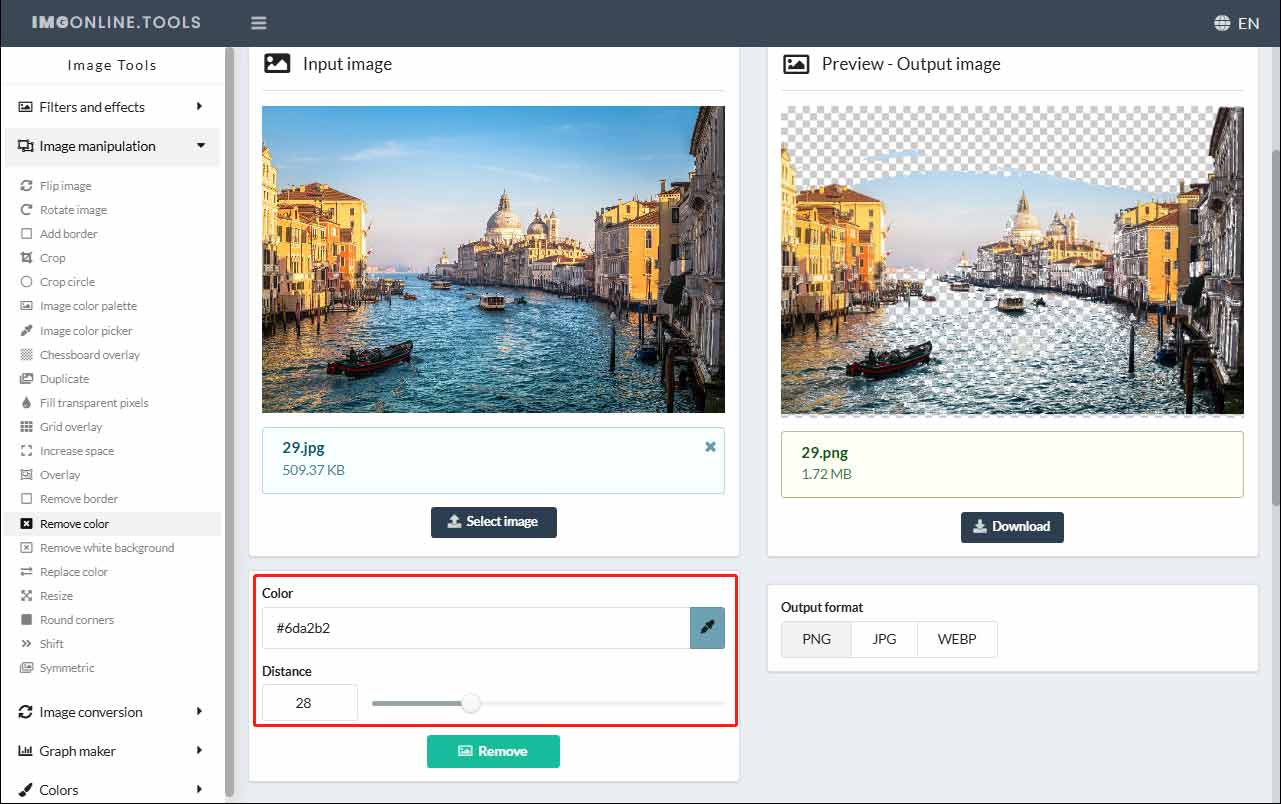
Step 4. Save the image
Select the desired output format, PNG, JOG, or WEBP, and click Download to download the photo to the computer.
Case 3: Remove All Color from Images
Removing all color from images typically means converting a color photo into black-and-white, grayscale, or monochrome by removing all color saturation. This can be done by lowering the saturation or applying a B&W or grayscale effect.
Personally, Microsoft Photos is a great tool for removing all color from an image. First, this is because Photos comes pre-installed on the system, so I don’t need to install it again. Second, Photos is free to use.
Here’s how to remove all color from images using Microsoft Photos.
Step 1: Open the target photo
Right-click the desired photo, hover over the Open with option from the dropdown list, and select Photos.
Step 2: Remove all color from the image
In the preview window, click Edit in the upper left corner to open the editing window.
Method 1: Click the Adjustment icon at the top toolbar, go to the Color section, and drag the Saturation slider to the left.
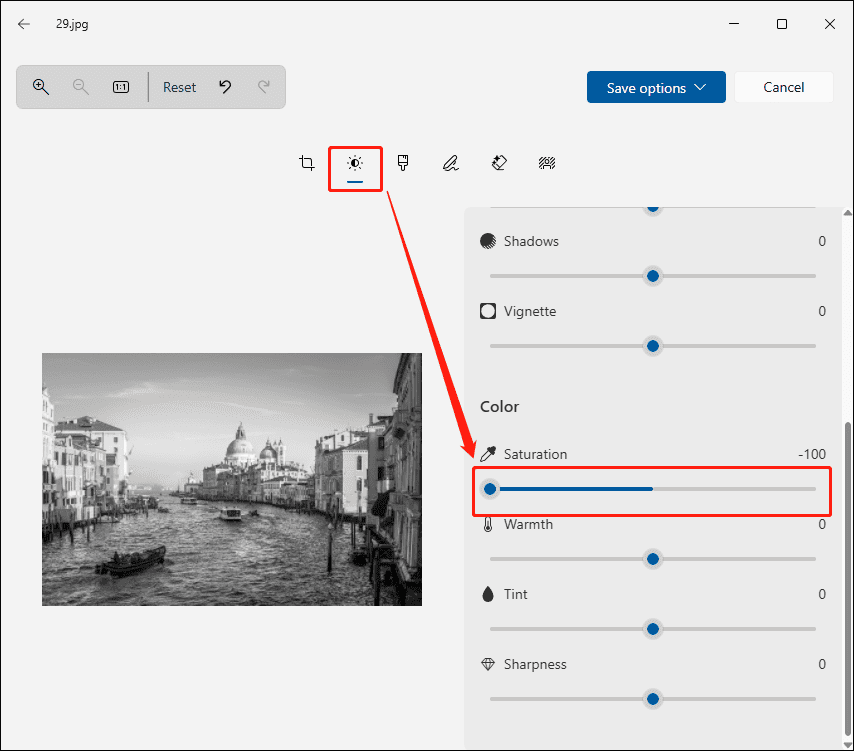
Method 2: Click the Filter icon next to Adjustment and apply a B&W effect.
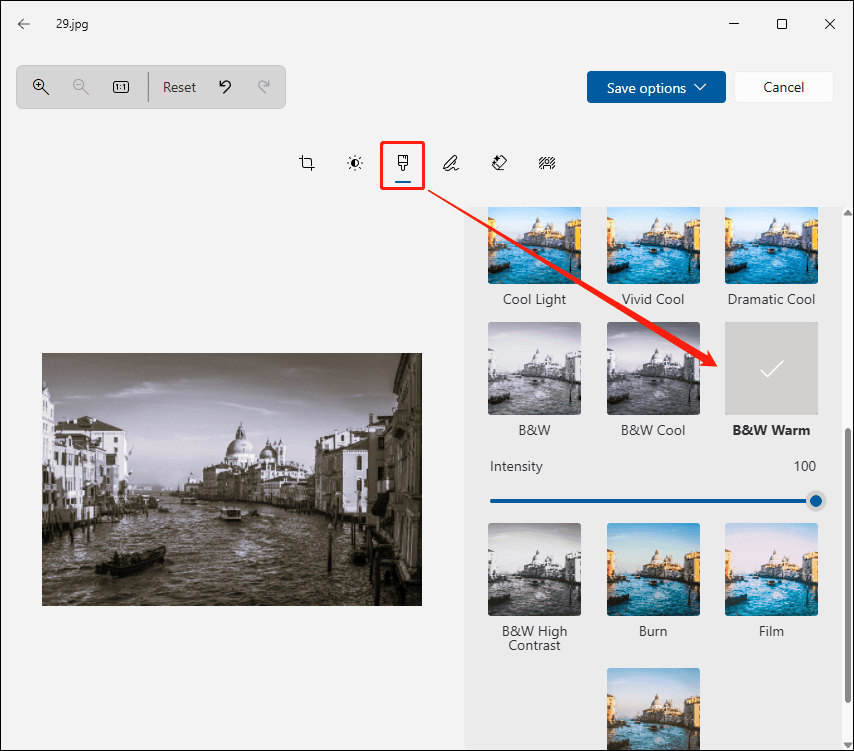
Step 3: Save the photo
Click the Save options in the upper-right corner and select Save as copy or Save to save the vintage photo to the computer.
Conclusion
It’s not hard to remove color from images. Whether I want to remove the background color, a certain color, or all colors from an image, I can find the appropriate tool. All of them are easy to use and give my photo a new look.
About The Author

Position: Columnist
Cora is a tech writer specializing in digital media workflows, with over six years of hands-on experience in video post-production, media transcoding, and screen capture. Her writing is always clear and practical. Cora also produces in-depth software reviews for users across skill levels to help them find the right tool and enjoy video editing.
User Comments :