

What Do You Need to Know about the Windows Photos App
Like Cortana, Windows Photos App is also a built-in program in Windows 10, which allows you to find and tag people. It can help you keep your multiple photos organized. With this feature, you can check images on local drive or OneDrive Cloud storage easily.
In addition, Microsoft released an an intelligent sorting feature to the Windows Photos app from July 2017 based on AI technology. This feature enables the Windows Photos app to recognize and organize photos based on a large number of categories including faces.
How to find and tag people in Windows 10 photos app? The Windows Photos App includes the option to tag people by name now. When you navigate to the People tab of the app, you will see a short introduction of the feature together with the Start tagging button. You can choose one person or add a new contact’s name from here.
However, this feature lacks the ability to tag them easily. Fortunately, Microsoft has corrected this error. Now, you can find and tag people in Windows 10 Photos app.
How to Find and Tag People in Windows 10 Photo App
How to tag photos in Windows 10? If you are using the latest version of the Photos app, you are able to find and tag your contacts easily. Here is the guide to help you complete that operation. Read the following steps with attention please.
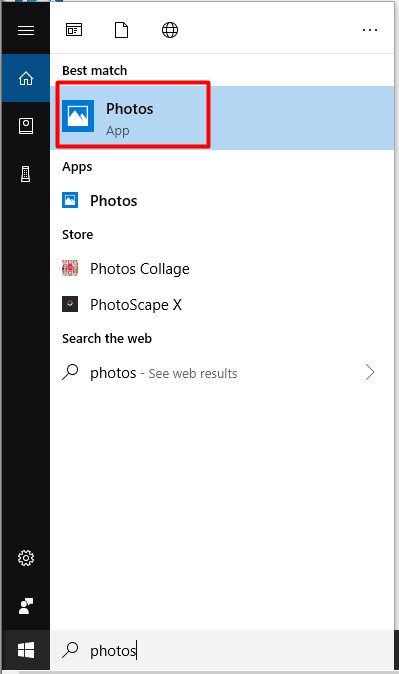
Step 1: Type photos in the search box, and then select the Photos option from the menu.
Step 2: Then click the See more option (visible as 3 horizontal dots) and choose Settings.
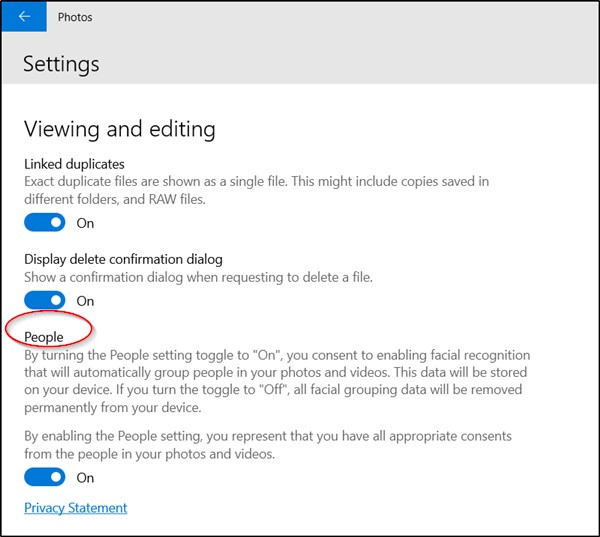
Step 3: Scroll down the menu to the Viewing and editing part and enable the People option.
Step 4: Click People under Photos heading to get the page where you can tag people (friends and family members). But you need to let Photos app access your contacts first.
Step 5: Then click the Start tagging button to continue the operation.
Step 6: Allow access when the notice message appears.
Step 7: Then you can see the Add name option. Click it and see whether the person is listed on your contacts list. If so, you can use the added name for the current photo and the person will be tagged automatically.
You can finish Windows 10 photo tagging operation with the steps above.
User Comments :